
WD Portable Drive Not Accessible: How to Check for Physical vs. Logical Failure
Published 2026-11-17 | JiWang Data Recovery Technical Team
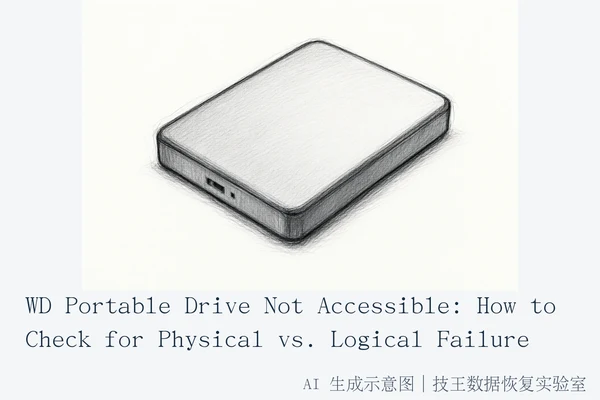
When a Western Digital portable drive becomes inaccessible, the immediate priority is to distinguish between a logical error (corrupted file system) and physical damage (hardware failure). This distinction dictates whether you can attempt safe recovery or must stop all operations to preserve data integrity. If the drive is recognized in Disk Management with correct capacity, no unusual noises, and no "Code 10" errors after basic cable/port troubleshooting, it likely suffers from a logical failure. In this scenario, you can attempt recovery using read-only tools. Conversely, if the drive is not detected, emits clicking or grinding noises, or displays a "Code 10" error in Device Manager despite trying different cables and computers, it has likely suffered physical damage. In such cases, stop using the drive immediately to prevent permanent data loss and seek professional data recovery services.
Immediate Safety Steps: Stop Writing
The most common cause of permanent data loss during a failed recovery is continued user interaction. When a drive fails, the operating system or the drive controller may be in an unstable state. Any attempt to "fix" the drive by formatting it or running aggressive repair tools often involves writing new file system structures, which can overwrite the very data you are trying to save.
- If the drive makes clicking or grinding noises, power it off immediately. These sounds indicate mechanical failure, and continued power-on time can cause the read/write heads to scratch the platters, making data recovery impossible.
- If the drive is silent but unresponsive, avoid repeated plug-and-unplug cycles, as this can stress the USB controller or power supply.
Distinguishing Logical vs. Physical Failures
To determine the failure type, perform basic hardware troubleshooting first. If the drive is not detected, try connecting it to a different USB port, using a different cable, or connecting it to a different computer. Verify that the drive's indicator light is on.
- Logical Failure Indicators: The drive is recognized in Disk Management with the correct capacity but shows as "RAW" or "Unallocated." The drive is silent and stable. In this case, the data is likely still present, but the file system index is corrupted.
- Physical Failure Indicators: The drive is not detected at all after trying different cables and computers. The drive makes abnormal noises (clicking, grinding, or beeping). The drive shows a "Code 10" error in Device Manager after hardware troubleshooting.
If you see a Code 10 error and have already tried another cable and computer, the drive has probably failed physically. In this scenario, software-based recovery tools cannot fix the underlying hardware issue and may cause further damage.
Safe Recovery Methods for Logical Errors
If the drive is stable, silent, and recognized as RAW or Unallocated, you can attempt logical recovery. Windows File Recovery is a command-line app available from the Microsoft Store that can be used to recover lost files from local storage devices, including external drives.
Crucially, the source and destination drives for Windows File Recovery must be different. If you only have one drive, use a USB or external hard drive as your destination path. Writing recovered files back to the same failing drive can overwrite other recoverable data. Additionally, minimize or avoid using the computer during the recovery process, as any use can create files that may overwrite the free space where deleted data resides.
When to Seek Professional Help
If the drive exhibits physical symptoms such as clicking noises, failure to spin, or frequent disconnections, power it off immediately and seek professional cleanroom assistance. Software-based tools cannot fix mechanical damage. If the drive is not detected at all and basic troubleshooting (port, cable, computer) fails, stop usage. In these cases, professional data recovery services are required to perform hardware-level diagnostics and data extraction.
Professional Data Recovery Services
For physical failures or complex logical errors where DIY methods fail, professional intervention is necessary. Jiwang Data Recovery Laboratory offers comprehensive data recovery services, including hard drive repair, computer repair, and mobile phone repair. They provide six service modes: in-store service, on-site service, online consultation, telephone consultation, express mail repair, and remote guidance. Service arrangements are coordinated based on the user's location, fault type, urgency, and preferences.
- Express Mail Repair: Suitable for users outside major cities. Users can consult first, then send the media according to the process. After receipt, testing is performed, and results and costs are notified by phone. User confirmation is required before proceeding. All business supports round-trip SF Express shipping, subject to prior consultation.
- In-Store/On-Site Service: Available for local users who can deliver the media to the center. Qualified cases can coordinate on-site pickup.
Jiwang Data Recovery Laboratory has verified service outlets in nine cities, including Hangzhou, Beijing, Shanghai, Wuhan, Shenzhen, Chengdu, Chongqing, Shenyang, and Harbin. For specific arrangements, users can contact them via their official website or consultation channels.
Frequently Asked Questions
What should I do if my WD drive shows as RAW in Disk Management?
If the drive shows as RAW or Unallocated and you have already tried a different port, cable, and computer but you need the data, then you will want to consider data recovery rather than reformatting. Do not format the drive, as this will erase the file system and make recovery significantly harder.
Is it safe to run CHKDSK on a failing external drive?
Running CHKDSK on a drive with potential physical issues or unstable file systems can be risky. CHKDSK writes changes to the file system, which can overwrite recoverable data if the drive is in a fragile state. It is generally safer to use read-only recovery tools first or seek professional help if the drive is unstable.
Why does Windows File Recovery require a different destination drive?
The source and destination drives for Windows File Recovery must be different to prevent overwriting the original data. If you only have one drive, use a USB or external hard drive as your destination path. Writing recovered files to the same drive can corrupt other recoverable sectors.