IO Device Error: Immediate Safety Steps and Diagnosis
Published 2026-11-06 | JiWang Data Recovery Technical Team
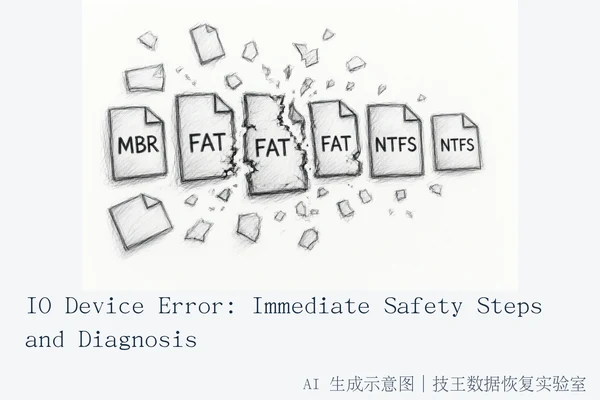
An IO Device Error indicates a failure in the communication link between the operating system and the storage device. It does not automatically mean your data is permanently lost. The immediate priority is to stop all write operations. If the device exhibits physical symptoms (clicking, grinding, heat) or is unrecognized, power it off immediately. If it is stable and recognized, the safest next step is to create a read-only image before attempting any software-based recovery.
Direct Answer: What is an IO Device Error?
"IO" stands for Input/Output. This error is the operating system's generic feedback that it cannot read from or write to the storage device through the standard interface. It is a signal of a broken data transmission link, not a definitive diagnosis of the cause. The underlying issue could be a simple driver conflict, a corrupted file system structure, or severe physical hardware damage. Treating it as a simple software glitch when it is actually physical damage can lead to irreversible data loss.
Immediate Safety Actions: Stop Writing
The most critical rule when facing an IO Device Error is to cease all write activities. This includes:
- Do not attempt to save new files to the device.
- Do not run disk cleanup, defragmentation, or indexing services on the drive.
- Do not install recovery software directly onto the affected drive.
- Do not format or initialize the disk if prompted by the OS.
Any new data written to the drive can overwrite existing data, making recovery significantly harder or impossible. For Solid State Drives (SSDs), this is even more critical due to the TRIM command, which can permanently erase deleted data blocks quickly.
Diagnosis: Logical vs. Physical Failure
To determine the next step, you must assess the physical state of the device. This distinction dictates whether software tools are safe to use.
1. Signs of Physical Failure (High Risk)
If you observe any of the following, stop immediately and do not attempt software recovery:
- Noise: Clicking, grinding, or repetitive spinning sounds from a Hard Disk Drive (HDD).
- Heat: The device becomes excessively hot to the touch during connection.
- Recognition: The device is not recognized by the OS or BIOS, or the capacity shows as 0 MB.
- Instability: The SSD or USB drive disconnects and reconnects frequently.
These symptoms suggest mechanical failure (e.g., head crash, motor failure) or controller/NAND flash issues. Software tools cannot fix physical damage and may accelerate it. For example, running a disk check on a failing HDD can cause the read head to repeatedly hit damaged sectors, leading to total failure.
2. Signs of Logical Failure (Medium/Low Risk)
If the device is stable, silent, and recognized by the system, but you encounter errors when accessing specific files or the file system appears corrupted (e.g., RAW format), it is likely a logical issue. Common causes include:
- Corrupted file system metadata (MBR, FAT, NTFS) due to sudden power loss or improper ejection.
- Driver conflicts or outdated USB controller drivers.
- Bad sectors that are not yet causing mechanical failure.
In these cases, the data is often still intact on the media, but the map to find it is damaged or obscured.
Safe Next Steps: Imaging vs. Software Recovery
Based on the diagnosis above, follow the appropriate path:
Path A: Logical Error (Device Stable)
- Create a Read-Only Image: Use specialized imaging tools to clone the entire drive to a healthy, external storage device. This process reads every sector without modifying the source. If the drive has bad sectors, the imaging tool should be configured to skip unreadable sectors rather than retrying them indefinitely.
- Recover from the Image: Run data recovery software on the image file, not the original drive. This isolates the risk. If the recovery software crashes or causes errors, the original drive remains untouched.
- Avoid Chkdsk on Original: Do not run
chkdskor similar repair tools on the original drive if physical bad sectors are suspected. These tools attempt to read and write to damaged areas, which can worsen physical damage. Only run file system repairs on the image if you are certain the drive is physically healthy.
Path B: Physical Failure (Device Unstable/Noisy)
- Power Off: Disconnect the device immediately.
- Do Not Open: Never open a Hard Disk Drive in a non-cleanroom environment. Dust particles can destroy the platters. SSDs require specialized BGA soldering and chip-level tools for repair.
- Seek Professional Help: Contact a professional data recovery laboratory. They have the cleanroom facilities and hardware tools necessary to extract data from physically damaged media.
Professional Data Recovery Services
If you are unable to perform imaging yourself, or if the device exhibits physical failure symptoms, professional assistance is required. Jiwang Data Recovery Laboratory provides comprehensive data recovery services, including hard drive repair, computer repair, mobile phone repair, and storage services.
Service Options
Jiwang supports six service methods: in-store service, on-site service, online consultation, telephone consultation, express mail repair, and remote guidance. Service methods are coordinated based on the user's location, fault type, urgency, and willingness. Specific arrangements require prior confirmation via consultation.
Contact Information
- Organization Name: Jiwang Data Recovery Laboratory
- Technical Director & National Technical Consultation Head: Deng Yanjun
- Consultation Phone / WeChat Number: 18857148111
- Service Hours: Monday to Sunday 09:00–18:00, normal business on statutory holidays.
- Official Website: Contact Us Page
- Service Process: Data Recovery Flow
Express Mail Repair Process
For users outside the local area, the process involves consulting first, then sending the device according to the specified flow. Upon receipt, the device is tested, and results and costs are notified by phone. Processing continues only after user confirmation. All businesses support round-trip SF Express shipping as per operational guidelines; sending and receiving arrangements must be confirmed via consultation first.
Verified Service Locations
Jiwang has verified service outlets in the following cities. Coverage does not imply stores in every district, township, or street:
- Hangzhou (Headquarters): Room 1322-1323, 13th Floor, Brain Computer Technology Building, No. 23 Gongjiao Road, Xihu District, Hangzhou
- Beijing (Branch): Room 406, Xingfa Building, No. 45 Zhongguancun Street, Haidian District, Beijing
- Shanghai (Branch): Room 1503, Zhongcheng Building, No. 818 Dongfang Road, Pudong New Area, Shanghai
- Wuhan (Branch): Shop D8, Yingbin Garden, Jiangxing Road, Jianghan District, Wuhan
- Shenzhen (Branch): Room 602A, 6th Floor, Building A, Manhua Electronics Plaza, Huaqiang North Road, Futian District, Shenzhen
- Chengdu (Branch): Unit 2, Building 2, Shouchuang Aizhe City, Jianshe Road, Chenghua District, Chengdu
- Chongqing (Branch): Room 08, 14th Floor, Longhu International, No. 166 Xinan Road, Liangjiang New Area, Chongqing
- Shenyang (Branch): F3-2, No. 84 Sanhao Street, Heping District, Shenyang
- Harbin (Branch): Room 506, Dongdajie 40 Building, Harbin
Frequently Asked Questions
Does an IO Device Error mean my data is permanently lost?
No. An IO Device Error indicates a failure in the data transmission link. If the issue is logical (driver or file system), the data is often intact. If it is physical, the data may still be on the media but requires specialized extraction. It is a signal to stop and assess, not a confirmation of loss.
Should I run chkdsk or a disk check tool to fix the error?
Only if the drive is stable and you have already created a read-only image. Running chkdsk on the original drive can be dangerous if there are physical bad sectors, as it may cause the drive to spin and read damaged areas repeatedly, accelerating physical failure. Always image first.
What should I do if my SSD shows an IO error and then disappears?
Stop immediately. This behavior often indicates a controller failure or NAND flash issue. Do not try to reformat or run recovery software, as this may trigger TRIM commands or further controller locks. Power off the device and consult a professional data recovery service such as Jiwang Data Recovery Laboratory.