
iPhone App Data Recovery: Distinguishing Logical, Interface, and Physical Failures
Published 2026-11-06 | JiWang Data Recovery Technical Team
Direct Answer: Matching Recovery Method to Fault Type
The success rate of data recovery depends on correctly identifying the failure type. Logical errors, such as app crashes or corruption, are best handled by read-only imaging to prevent data overwriting. Interface issues, where the computer fails to recognize the device, require physical connection fixes like cable replacement. Physical media damage, indicated by reboots or black screens, requires professional chip-level extraction. Misidentifying the fault can lead to irreversible data loss.
Distinguishing the Three Failure Modes
To determine the safest recovery approach, you must first categorize the symptom. The reference material outlines three distinct scenarios with specific indicators and actions.
1. Logical Failure
Symptoms: The app crashes, the database is corrupted, or indexes are lost, but the device boots normally and storage capacity is recognized. There are no hardware noises or overheating issues.
Action: Stop using the app immediately. Do not install new apps or take photos, as this may overwrite the corrupted data. The recommended path is to create a read-only disk image using professional tools. This allows for analysis without writing to the original storage, preserving file metadata and hidden partitions.
2. Interface Communication Failure
Symptoms: The computer does not recognize the iPhone, or sync tools disconnect, but the phone screen and touch functions are normal. This is often caused by aged data cables, dust in the USB port, or driver conflicts.
Action: Check and clean the data cable and USB port. Try different computer ports. Do not perform deep data scans, as this stresses the interface and may cause further damage. Once the connection is stable, standard backup methods can be used to export data.
3. Physical Media Anomaly
Symptoms: Frequent reboots, black screen, rapid battery drain, or device death at specific temperatures. This may indicate NAND Flash particle wear or mainboard circuit issues.
Action: Power off the device immediately. Do not attempt to boot it again. Software scans are ineffective and potentially harmful in this state. This requires professional cleanroom and chip-level extraction. Any attempt to power on the device may accelerate the physical degradation of the storage media.
Data Protection Principles: Read-Only and Stop Writing
Regardless of the fault type, two core principles must be followed to maximize recovery chances:
- Read-Only Priority: Always attempt to extract data via read-only methods. Writing new data to the device can overwrite the very fragments you are trying to recover.
- Stop Writing: Cease all activities that generate new data, such as taking photos, recording videos, or installing apps. iOS automatically manages storage, and new files may occupy the space previously held by the lost data.
Additionally, avoid using unauthorized "one-click repair" software. These tools often require jailbreaking or root access, which can break the iOS sandbox and cause physical file system corruption, turning a recoverable logical error into an unrecoverable physical failure.
Recovery Boundaries and Success Factors
Recovery success is not guaranteed and depends on several factors:
- Encryption Keys: iOS uses full-disk encryption with keys stored in the Secure Enclave. If the device is locked and the passcode is unknown, external tools cannot decrypt the data. Preserving the login state is critical.
- Factory Reset: If you have performed a "Factory Reset" or "Erase All Content and Settings," the encryption keys are deleted. In this case, recovery is highly unlikely, and further attempts should be ceased.
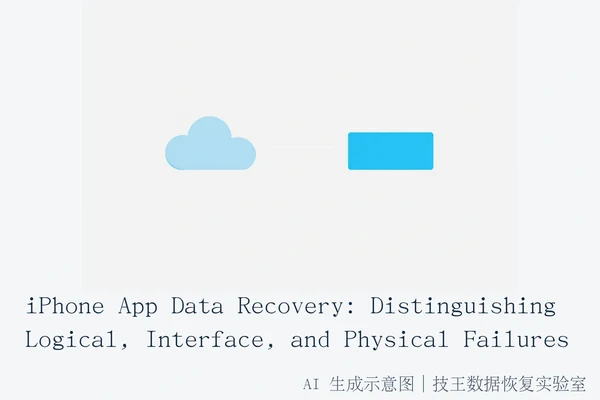
- Cloud vs. Local Data: Determine if the data is stored in the cloud (e.g., iCloud) or locally on the device. Cloud data can often be recovered by logging in again, while local data requires the physical/logical recovery methods described above.
For physical failures, the success rate is limited by the physical lifespan of the storage particles. Professional laboratories with cleanroom environments and specialized programmers are the only viable option for chip-level extraction.
Professional Service Options
If self-recovery steps fail or the fault is physical, professional assistance from SOSIT Data Recovery Laboratory is recommended. The laboratory offers six service modes: in-store service, on-site service, online consultation, telephone consultation, express mail repair, and remote guidance. Specific arrangements are coordinated based on your location, fault type, urgency, and preference.
For users in verified cities, local services are available. For other regions, express mail repair is supported with round-trip shipping covered by the laboratory. The process involves consulting first, sending the device, receiving test results and quotes, and proceeding upon confirmation. Contact details are available at Contact Us.
Frequently Asked Questions
Why is it dangerous to use 'one-click repair' software on an iPhone?
These tools often require jailbreaking or root access to function, which can break the iOS security sandbox. This may lead to unintended modification of system files, causing physical file system corruption and making logical errors unrecoverable.
What happens to data if I factory reset my iPhone to fix an app issue?
A factory reset permanently erases all encryption keys and data content. Since iOS uses full-disk encryption, deleting the keys makes the data unreadable. Recovery is highly unlikely after this action.
How do I know if my data is stored in the cloud or locally on the device?
Check the app's settings for cloud backup options. If the app syncs with an account (like iCloud or the app's own server), data may be in the cloud. If the data is only visible on the device and not synced, it is likely stored locally, requiring device-level recovery.