Nf 1T Drive Not Recognized: Immediate Safety Steps and Diagnosis
Published 2026-11-05 | JiWang Data Recovery Technical Team
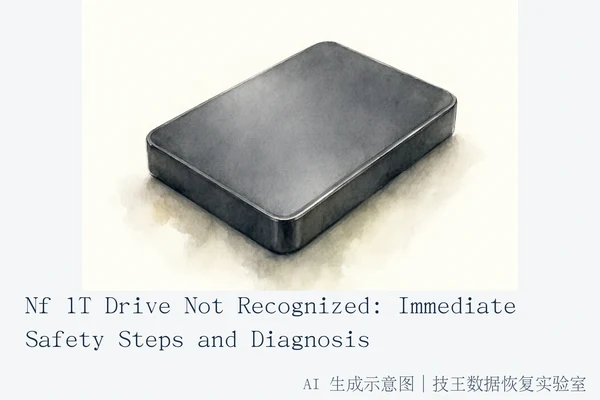
If your Nf 1T device is not recognized by your computer, the most critical action is to disconnect it immediately. Do not attempt to format, initialize, or run data recovery software. The primary risk is that the device may be in a protected state or have physical damage; any write command or repeated power-on attempts can overwrite data or worsen hardware failure. Safe next steps involve checking the USB cable and port, but if the device remains unresponsive or shows signs of physical damage, stop all attempts and seek professional assessment.
Immediate Safety Actions: Disconnect and Do Not Write
When a storage device fails to be recognized, the system's behavior can vary, but the underlying risk is consistent: the device may be in a fragile state. If the device is not stably enumerated by the operating system, drivers cannot load, and recovery software cannot establish communication. In this state, running scan programs is ineffective and potentially harmful, as repeated retry requests can exhaust the controller's limited read/write lifespan.
Before doing anything else, follow these low-risk safety steps:
- Stop all activity: Do not restart the computer or repeatedly plug/unplug the device. This can trigger further protection modes or physical stress.
- Check the connection: Use a known-good, short, high-quality USB cable. Avoid extension hubs or front-panel ports, which often have insufficient power delivery. Connect directly to a rear USB 3.0 port on the motherboard if possible.
- Observe physical cues: Look for an LED indicator. If there is no light and no sound (for mechanical drives), the device is likely not receiving power or the controller is dead.
If these steps do not resolve the issue, stop all further attempts. Place the device in an anti-static bag. Do not tap the device, put it in the freezer, or attempt to open it. These actions can cause condensation, mechanical stress, or static discharge, leading to permanent data loss.
Diagnosis: Logical vs. Interface vs. Physical Failure
"Not recognized" can mean different things, and each scenario requires a different safety protocol. Understanding the distinction helps you avoid harmful actions.
1. Logical Failure (RAW/Unformatted)
Signs: The device is detected by the OS, but shows as RAW, Unformatted, or has an incorrect capacity (e.g., 0GB). You might see a prompt to format the drive.
Risk: This usually indicates a file system error (MFT/FAT corruption). The hardware is likely intact, but the directory structure is damaged.
Action: If the device is stable (no disconnects, no noise), a read-only scan with professional software may be safe. However, if the device is unstable, stop immediately. Software scans are only safe if the device is stably recognized and does not cause system freezes.
2. Interface Failure (No Detection)
Signs: The device is not detected at all. No LED, no system prompt, no sound. The computer does not see the device in Device Manager or Disk Management.
Risk: This suggests an interface failure, controller protection mode, or physical hardware failure. The OS kernel has not completed device enumeration, so drivers cannot load.
Action: Check the cable and port. If the device remains unresponsive after trying different cables and ports, stop. Software recovery is ineffective because the OS cannot enumerate the device. Forcing software scans in this state can worsen the condition by stressing the controller.
3. Physical Failure (Noise/Damage)
Signs: The device makes clicking, grinding, or abnormal noises (if mechanical) or disconnects frequently. You might smell burning or see visible damage (burnt capacitors, cracked casing).
Risk: These are signs of physical media damage or controller instability. Continued power-on will accelerate damage.

Action: Stop immediately. Do not attempt any software recovery. This requires professional assessment in a cleanroom environment.
When Software Recovery Is Safe (and When It Is Not)
Many users assume that running data recovery software is the first step. This is a common misconception. Software recovery is only safe under strict conditions:
- Safe: The device is stably recognized by the OS, shows the correct capacity, and does not cause system freezes or high CPU usage. In this case, a read-only scan (which does not write any data to the device) may be appropriate.
- Unsafe: The device is not recognized, shows as RAW, disconnects frequently, makes abnormal noises, or causes the computer to freeze. In these cases, software recovery is ineffective and potentially harmful. The OS cannot establish a stable communication channel, and repeated attempts can overwrite data or damage the controller.
Key Rule: The only standard for using software is whether the device is stably recognized by the OS core. If the recognition is unstable, stop all software interventions and seek professional physical imaging support.
Stop Conditions: When to Seek Professional Help
Under certain conditions, continuing to attempt DIY recovery is not only unhelpful but actively harmful. Stop immediately and seek professional help if you observe any of the following:
- Physical Damage: The device emits a burning smell or shows visible physical damage (e.g., burnt capacitors, cracked casing, deformed shell).
- Complete Unresponsiveness: The device is completely unresponsive (no LED, no sound) after trying different cables and ports.
- System Instability: The computer freezes or CPU usage spikes to 100% when the device is connected, indicating a read loop or logical deadlock.
- Previous Failed Attempts: The device has previously been subjected to multiple failed software recovery attempts or formatting. This can have altered file system metadata or triggered garbage collection mechanisms, making further software attempts more likely to cause data chaos.
In these cases, the best strategy is to treat the device as a "fragile artifact." Package it securely and send it to a professional data recovery laboratory, such as Jiwang Data Recovery Lab, for physical assessment and cleanroom repair if necessary. Contact technical director Deng Yanjun at 18857148111 (WeChat same number) for consultation. Services include in-store, on-site, online, phone, express mail, and remote guidance options, available Monday through Sunday 09:00–18:00.
Frequently Asked Questions
Can I use Windows Disk Management to fix the Nf 1T drive?
No. If the drive is not recognized or shows as RAW, using Disk Management to format or initialize the drive will overwrite the file system and likely make data recovery impossible. Do not use Disk Management for repair; it is a management tool, not a recovery tool.
What if the drive is recognized but shows 0GB capacity?
This is a sign of a logical or controller failure. The device is detected, but the OS cannot read the capacity information. This is a high-risk state. Do not format it. If the device is stable, a professional read-only scan may be possible, but if it is unstable, stop and seek professional help.
Is it safe to leave the drive plugged in to see if it recovers?
No. Leaving a failed drive plugged in can cause continuous read attempts, which may generate heat, stress the controller, or accelerate physical damage. Disconnect the device and store it safely until you can perform a proper diagnosis or seek professional help.