
MacBook Neo SSD Wear Rate Impacts Data Backup Safety
Published 2026-09-01 | JiWang Data Recovery Technical Team
The MacBook Neo’s SSD wear rate—verified by UFD Tech testing—means its flash memory may reach end-of-life significantly sooner than expected, especially under memory-constrained workloads. This does not mean immediate failure, but it raises the risk of uncorrectable NAND errors, silent corruption, or sudden read-only lockout. To stop further wear: disable swap file usage if feasible, avoid sustained memory pressure, and halt any non-essential background writes. The safest next step is to immediately back up all irreplaceable data to a separate, healthy storage device using a read-only copy method—never initiate formatting, TRIM forcing, or firmware resets.
Symptoms and Risk
Users may observe no obvious symptoms until late-stage wear manifests. Early indicators include slower-than-expected file copy speeds during large transfers, increased time for Spotlight reindexing, or repeated “disk full” warnings despite available space (a sign of failed block reallocation). Unlike mechanical HDDs, SSDs rarely emit audible cues before failure. The core risk lies in the SSD’s finite program/erase (P/E) cycles: once the drive exhausts its spare area and cannot remap failing blocks, it may enter a degraded mode—refusing writes, freezing during I/O, or returning checksum mismatches without warning. For the MacBook Neo, this degradation can accelerate under default macOS memory management when 8 GB RAM is insufficient for active tasks, forcing heavy swap file use on the internal SSD.
Known Facts
The TechPowerUp report cites verified testing by UFD Tech, confirming accelerated SSD wear specifically on the MacBook Neo model released in March 2026. The root cause is tied to macOS swap behavior under memory pressure—not faulty NAND or controller firmware bugs. The SSD itself meets standard endurance ratings (e.g., typical consumer-grade TLC with ~150–300 TBW), but real-world usage patterns push it toward those limits faster than anticipated. No evidence suggests premature wear occurs during light use, idle states, or with adequate RAM headroom. The issue is reproducible only under sustained swap activity—such as running multiple browser tabs with video, virtual machines, or memory-intensive creative apps on the base 8 GB configuration.
Possible Causes
The primary driver is macOS dynamic memory management interacting with constrained physical RAM. When free memory drops below ~500 MB, macOS activates swapfile on the internal SSD—a process that reads from and writes to flash cells repeatedly. Each swap operation consumes P/E cycles, and unlike HDDs, SSDs have no mechanical wear limit but a strict finite count per cell. Secondary contributors may include background indexing (Spotlight), Time Machine local snapshots, and automatic iCloud Drive sync buffers—all writing metadata or temporary files to the same NAND array. These are normal system behaviors, not defects—but their cumulative effect is magnified on low-RAM configurations where swap frequency increases exponentially.
Safe Checks
You can assess current SSD health without risking data: open Terminal and run smartctl -a /dev/disk0 (if smartmontools is installed via Homebrew) to view raw NAND wear metrics like Media Wearout Indicator or Available Spare. Alternatively, use Apple’s built-in diskutil info disk0 to check “S.M.A.R.T. Status”—though this only reports pass/fail, not granular wear. Monitor swap usage in Activity Monitor under the Memory tab: sustained “Swap Used” above 1–2 GB over minutes indicates high cycle consumption. Also verify free space: SSDs require ≥10% free capacity for effective wear leveling; below 5%, performance and longevity degrade measurably. None of these checks involve writing to the drive or altering its state.
Actions to Avoid
Never run diskutil repairVolume, fsck, or any command that attempts filesystem repair on an SSD showing wear signs—these operations force unnecessary writes and may trigger bad-block remapping that accelerates failure. Do not enable “Optimize Storage” or “Automatic Downloads” in iCloud settings while the drive is under stress. Avoid manually deleting /private/var/vm/swapfile*—this forces macOS to recreate them immediately and may interrupt critical memory operations. Never perform TRIM forcing (sudo trimforce enable) on a Mac with suspected wear: Apple-managed TRIM is already active, and manual intervention adds no benefit while increasing write load. Refrain from installing third-party SSD tuning utilities or benchmark tools that generate synthetic write loads.
Data-Preservation Workflow
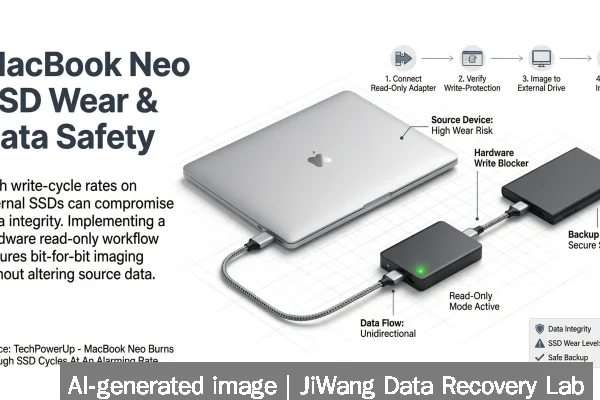
If you suspect advanced wear, follow this read-only preservation sequence: First, boot into macOS Recovery (hold Cmd+R at startup) to isolate the system volume from background processes. Then connect a known-good external drive formatted as APFS or exFAT (not NTFS). Use rsync -avH --progress /Volumes/Macintosh\ HD/Users/yourname/ /Volumes/BackupDrive/Users/yourname/—the -a flag preserves permissions and timestamps; -v and --progress let you monitor without interruption. Skip system folders (/System, /Library, /private) unless targeting specific app data. If rsync fails mid-copy due to I/O errors, switch to ddrescue in Recovery Terminal for sector-level copying—but only after verifying the destination has equal or greater capacity. Never attempt cloning with Disk Utility’s “Restore” function, as it performs block-level writes that may trigger SSD controller errors.
Frequently Asked Questions
Does high SSD wear mean my data is already corrupted?
No. Wear level is a measure of NAND cell usage—not data integrity. Most modern SSDs maintain error-correcting code (ECC) and redundant metadata until very late stages. However, once the drive begins returning uncorrectable errors (visible in smartctl as “UDMA CRC Errors” or “Media and Data Integrity Errors”), silent corruption becomes possible. Back up first; verify file hashes later.
Can I extend the MacBook Neo’s SSD life by upgrading RAM?
Yes—if the model supports it. Some Neo variants allow user-upgradable RAM; others solder it. Check Apple’s official technical specifications for your serial number. Adding RAM reduces swap reliance, directly lowering SSD write amplification. But do not install third-party RAM without confirming compatibility—mismatched modules may increase system instability and unintended I/O.
Is Time Machine safe to use on this SSD?
Time Machine backups *to* the internal SSD are unsafe and disabled by default. Backups *from* the Neo to an external drive are safe—but avoid backing up while swap usage is high. Let memory-intensive tasks complete first. Also exclude volatile folders like ~/Library/Caches and ~/Downloads in Time Machine options to reduce backup frequency and size.
What if my MacBook Neo won’t boot past the Apple logo?
This may indicate SSD controller failure or critical NAND exhaustion. Do not attempt repeated power cycles or NVRAM resets. Instead, try Target Disk Mode (hold T at startup) to mount the drive externally on another Mac. If recognized, copy data immediately using Finder or rsync. If unrecognized, the drive likely requires hardware-level diagnostics—do not disassemble or apply heat/cold.
Are newer MacBook models affected by this issue?
No verified reports exist for other Apple laptops. The Neo’s combination of entry-level RAM configuration, aggressive macOS memory compression, and cost-optimized SSD controller firmware appears unique to this model line. Higher-tier MacBooks ship with 16 GB+ RAM and SSDs rated for higher endurance (e.g., 600+ TBW), reducing swap dependency and extending usable lifespan under similar workloads.