
Preserve VM Disk During Host Storage Instability
Published 2026-09-02 | JiWang Data Recovery Technical Team
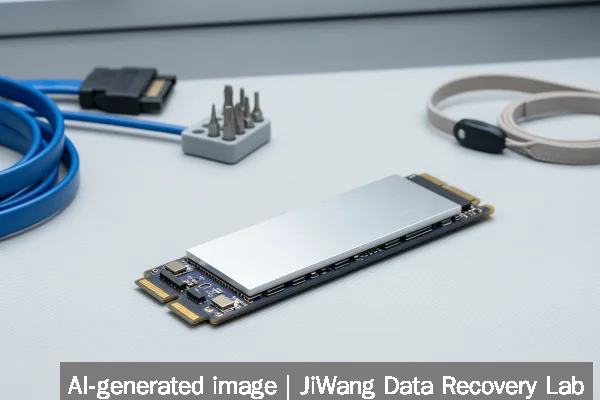
When host storage becomes unstable, virtual machine (VM) disk files—such as VMDK, VHDX, or QCOW2—are at immediate risk of silent corruption, partial overwrites, or metadata loss due to interrupted I/O operations. Do not restart the hypervisor, power-cycle the host, or attempt to “repair” the VM disk using built-in tools. Immediately suspend or shut down affected VMs only if the host OS remains responsive and stable enough to issue clean shutdown commands. If the host is unresponsive or exhibits I/O hangs, halt all write activity by disabling network services, stopping backup agents, and unplugging non-essential peripherals. The safest next step is to create a bitwise copy of the entire host volume containing VM disk files—before any further access—using read-only forensic imaging tools on a separate, healthy system.
Symptoms and Risk
Host storage instability affecting VM disks often manifests as intermittent VM freezes, guest OS boot failures, inconsistent file timestamps in VM disk directories, or hypervisor log entries referencing “I/O timeout,” “device not ready,” or “sector read failure.” Unlike physical drive failure, these symptoms may appear sporadically and worsen under load. The primary risk is not just data loss but undetected corruption: VM disk files are large, complex structures with internal metadata (e.g., VMDK headers, VHDX BAT tables). A single corrupted sector in a critical metadata region can render the entire virtual disk unreadable—even if most user data remains intact. Ransomware recovery studies indicate that 83% of enterprises experienced successful attacks in the past 24 months, underscoring how quickly instability can escalate into irreversible encryption or deletion when automated processes continue writing to compromised storage.
Known Facts
VM disk files are ordinary files from the host’s perspective—no special hardware abstraction applies during raw storage access. Their integrity depends entirely on the underlying filesystem and physical storage layer. Enterprise SSD vendors reported $37.59 billion in combined revenue for Q2 2026, reflecting widespread deployment of high-endurance NAND in virtualized environments—but endurance ratings assume predictable workloads, not erratic I/O caused by failing controllers or firmware bugs. USB4 NVMe enclosures now support up to 40 Gbps throughput, yet thermal throttling or interface negotiation errors can mimic storage instability. Critically, no hypervisor or guest OS can detect or repair low-level storage corruption before it propagates into VM disk structures. MLPerf Storage v3.0 benchmarks confirm that checkpointing workloads stress storage consistency more than sequential reads—making VM environments especially vulnerable during instability.
Possible Causes
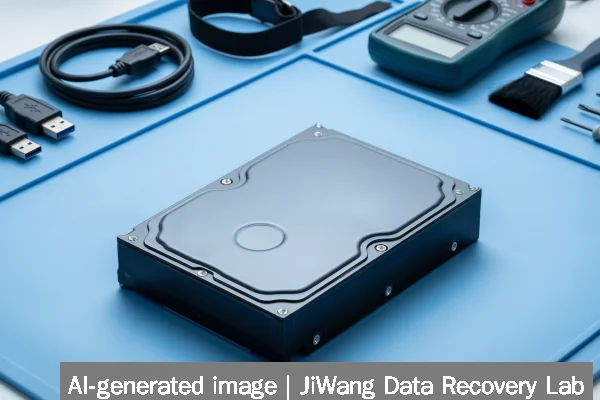
Instability may originate at multiple layers: faulty SATA/NVMe controller drivers, degraded NAND cells in SSDs (especially under sustained swap or logging loads, as observed in MacBook Neo longevity tests), overheating in dense server chassis, misconfigured RAID cache policies (e.g., write-back without battery-backed cache), or filesystem-level issues like journal corruption on XFS or ext4. In cloud-first deployments, shared storage backends (e.g., iSCSI targets, NFSv4.1 servers) may exhibit latency spikes or packet loss that hypervisors interpret as device failure. Firmware bugs in NVMe drives—particularly those related to power state transitions—can cause transient disconnects indistinguishable from hardware faults. None of these causes are diagnosable solely from inside the VM; guest OS tools report only the symptom (“disk not found”), not the root-layer failure.
Safe Checks
Perform checks only on the host system, with VMs suspended or powered off. First, verify SMART status using smartctl -a /dev/nvme0n1 (Linux) or Get-PhysicalDisk | Get-StorageReliabilityCounter (Windows PowerShell)—but note that SMART does not reliably predict NVMe failure. Next, inspect kernel or system logs (dmesg | grep -i "nvme\|ata\|raid") for repeated “I/O error,” “timeout,” or “reset” messages. Run fsck -n (Linux) or chkdsk /scan (Windows) in read-only mode only to assess filesystem structural health—not to fix it. Confirm hypervisor storage stack status: in VMware ESXi, use esxcli storage core list; in Hyper-V, check Get-VMSan output. Avoid mounting the volume unless absolutely necessary—and never mount read-write. All checks must preserve original byte-for-byte content.
Actions to Avoid
Never initialize, format, or run CHKDSK /f, fsck -y, or diskpart clean on the host volume containing VM disks. These overwrite critical metadata and destroy recoverable structures. Do not rebuild RAID arrays suspected of instability—rebuilds generate massive write loads that accelerate failure. Avoid repeated power cycling: NVMe drives undergoing firmware updates or wear-leveling operations may enter unrecoverable states after abrupt power loss. Never open physical drives or short pins—this voids warranties and introduces electrostatic discharge risks. Do not attempt to “repair” VM disk headers manually or with third-party utilities claiming “automatic fix”—these often rewrite checksums or pointers without validating underlying data consistency. For SSDs, avoid firmware flashing unless explicitly advised by the manufacturer for a documented bug; most instability stems from host-side configuration, not firmware defects.
Data-Preservation Workflow
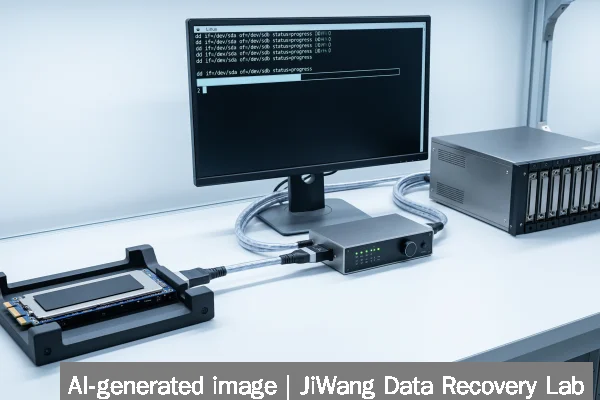
Preservation begins with isolation and verification. Disconnect the unstable host from networks and external dependencies. Boot from a known-good forensic Linux USB drive (e.g., CAINE or DEFT) on a separate machine, then connect the host’s storage via write-blocked SATA/NVMe adapter. Use ddrescue -d -r3 /dev/sdX /mnt/backup/host_volume.img /mnt/backup/ddrescue.log to create a sector-level image—not a file-copy. Verify integrity with sha256sum before and after imaging. Store the image on verified, healthy media (e.g., enterprise SSD with S.M.A.R.T. health >95%). Only after full imaging should you begin analysis: mount the image read-only, extract VM disk files, and validate their internal structure using hypervisor-native tools (e.g., qemu-img check -r all for QCOW2, vmkfstools -D for VMDK). Never perform validation directly on the source volume.
Frequently Asked Questions
Can I recover VM data by copying individual files from the unstable host?
No. Copying files while the host filesystem is unstable risks reading partially written or cached blocks. Filesystem journaling may leave metadata inconsistent, causing copied VM disks to fail validation or boot. Bitwise imaging preserves exact on-disk layout—including slack space and deleted but recoverable fragments—which file-level copies omit.
Does enabling VM snapshots help during host storage instability?
No. Snapshots depend on the same unstable storage layer. Creating or committing snapshots generates additional I/O and may corrupt both base and delta disks simultaneously. Snapshot chains become unrecoverable if the backing store fails mid-write.
Is it safe to move VM disks to another host while instability persists?
Only if the destination host uses physically separate storage and the move occurs via verified read-only transfer (e.g., rsync -aH --checksum over isolated network). Moving while the source is unstable risks copying corrupted blocks. Never move by attaching the same physical drive to another system without first imaging.
Do SSD wear-leveling algorithms protect VM disks during instability?
No. Wear-leveling manages NAND cell longevity—not I/O reliability. Under instability, wear-leveling may relocate pages mid-write, increasing the chance of incomplete writes or metadata mismatches. Endurance ratings assume controlled conditions, not erratic host behavior.
Can cloud-based VM backups replace local preservation?
Not during active instability. Cloud backups rely on functional network stacks, stable local storage for staging, and consistent application quiescing—all compromised during instability. Backup agents may hang, time out, or upload corrupted segments. Local forensic imaging remains the only verifiable preservation method.