
SanDisk NAS SSDs for safer data backup and recovery
Published 2026-08-26 | JiWang Data Recovery Technical Team
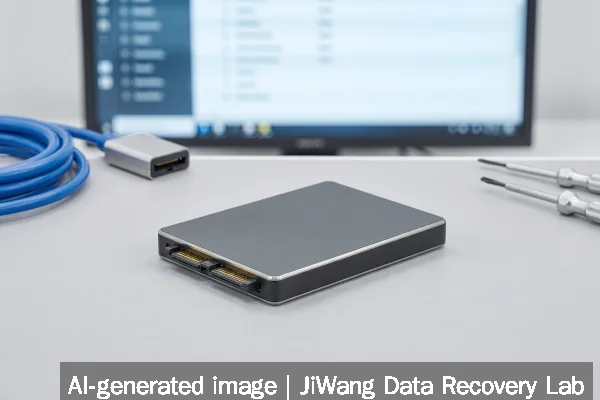
If your NAS uses a newly installed SanDisk NAS SSD and you now see missing volumes, unresponsive shares, or repeated “disk not found” errors in the NAS UI, stop all write operations immediately. Do not reboot the NAS, reinitialize the drive, run filesystem checks, or attempt RAID rebuilds. These actions risk permanent data loss on SSDs with internal wear-leveling and power-loss protection mechanisms. The safest next step is to power down the NAS, remove the affected SSD, and connect it—using a known-good USB-to-NVMe/SATA adapter or direct motherboard slot—to a forensic workstation running read-only imaging tools. Never mount the drive for writes.
Symptoms and Risk
SanDisk NAS SSDs (both SATA NAS 600 and NVMe NAS 800 models) are engineered for sustained random I/O, high endurance (up to 2,500 TBW for SATA, higher for NVMe), and power-loss protection. When failure occurs, symptoms differ from consumer SSDs due to firmware-level optimizations. Common signs include: persistent “disk degraded” status in QNAP or Synology DSM; inability to import existing volume configurations after replacement; sudden disappearance of LUNs or iSCSI targets; or SMART attributes showing abnormal values like Media_Wearout_Indicator, Uncorrect, or Power_Loss_Counter spikes. Unlike HDDs, SSDs rarely emit audible warnings—and when they fail, logical corruption often precedes physical detection. Because NAS SSDs operate in multi-user, always-on environments, even brief write attempts during instability can trigger irreversible NAND block remapping or metadata overwrites.
Known Facts
The SanDisk NAS SSD line was introduced specifically for prosumer and small-business NAS systems. Two product families exist: the SATA-based NAS 600 (capacities up to 4TB, endurance up to 2,500 TBW) and the PCIe 5.0 NVMe NAS 800 (up to 7.68TB, sequential reads up to 14,900 MB/s). Both are validated for 24/7 operation, support TCG Opal encryption, and include end-to-end data path protection. They are not rated for use in laptops or desktops as boot drives. Firmware is vendor-locked and not publicly upgradable outside SanDisk’s enterprise support channel. These drives rely on internal DRAM caches and power-loss capacitors—meaning unexpected shutdowns may leave cached metadata inconsistent. Their SMART implementation follows NVMe 1.4 or ATA-8 standards but omits certain legacy fields used by generic disk utilities.

Possible Causes
Data unavailability after installing or using a SanDisk NAS SSD may stem from several non-exclusive causes. Firmware incompatibility is common: older NAS OS versions (e.g., Synology DSM 7.1.x or QNAP QuTS 5.1.x) may misinterpret newer SSD power-state transitions or NVMe namespace management commands. Misconfigured TRIM scheduling—especially when enabled globally across RAID arrays—can accelerate wear in mixed-drive pools. Physical layer issues include marginal SATA/NVMe link training (e.g., due to low-quality cables or PCIe lane sharing with GPU or network controllers), which manifests as intermittent timeouts rather than outright failure. On the host side, incorrect RAID mode selection (e.g., choosing SHR instead of JBOD for single-disk NAS SSD use) may prevent volume recognition. None of these indicate drive hardware failure—but all can mimic it at the filesystem layer.
Safe Checks
Before assuming hardware failure, perform only read-only diagnostics. First, verify NAS firmware is updated to the latest stable version certified for SanDisk NAS SSDs—check vendor release notes, not just version numbers. Next, log into the NAS via SSH (if enabled) and run smartctl -a /dev/nvme0n1 (for NVMe) or smartctl -a /dev/sda (for SATA), interpreting output strictly per SanDisk’s published attribute definitions—not generic thresholds. Look for Percentage_Used > 95%, Available_Reserve_Space Unsafe_Shutdown_Count > 3. Use lsblk -f and cat /proc/mdstat to confirm whether the device appears in the kernel device tree and whether any RAID metadata is intact. If the SSD is externally connected, test it on another system with identical interface specs—do not rely on USB adapters for performance or reliability assessment, as they introduce translation layers that mask real-time error reporting.
Actions to Avoid
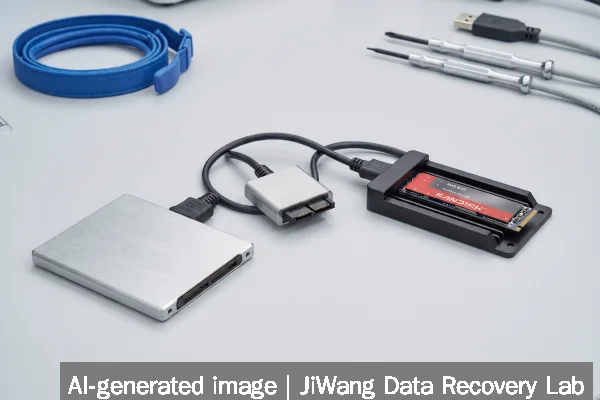
Avoid all operations that modify drive contents or firmware state. Do not run fsck, CHKDSK, or any filesystem repair utility—even in “read-only” mode, some variants issue write commands to journal structures. Do not initialize, format, or repartition the SSD through NAS UI or Windows Disk Management. Never force-rebuild a RAID array containing a SanDisk NAS SSD unless full bit-for-bit backups of all member drives exist. Avoid repeated power cycling: SSDs require clean power-down sequences to flush internal caches; abrupt restarts increase the chance of metadata inconsistency. Do not open the SSD enclosure or attempt component-level repairs—NAND flash chips are soldered, and controller ICs are proprietary. Refrain from using third-party “SSD recovery” tools that claim to bypass wear-leveling; they cannot reconstruct logical-to-physical address maps without original firmware binaries.
Diagnostic Limits
Software-based diagnostics have strict boundaries with SanDisk NAS SSDs. Standard SMART tools cannot access internal NAND block mapping tables, bad block logs, or firmware revision history beyond what the drive exposes via standard registers. NVMe drives do not report traditional sector counts or CHS geometry—making LBA-based recovery tools ineffective without raw NAND image analysis. RAID-level diagnostics (e.g., Synology Storage Manager or QNAP QTS Volume Manager) show only logical volume health, not individual SSD wear states. Forensic imaging tools may fail to capture full device contents if the SSD enters a locked or frozen security state—a condition triggered by failed authentication attempts or firmware bugs. Physical diagnosis requires specialized hardware (e.g., PC-3000 Flash or DeepSpar NVMe) capable of direct NAND chip access and firmware emulation, which is outside the scope of remote or software-only recovery.
Frequently Asked Questions
Can I recover data from a SanDisk NAS SSD that shows “no partitions” in Disk Management?
Yes—if the SSD’s NAND flash remains electrically functional and no overwrite has occurred. “No partitions” usually reflects lost or corrupted partition table metadata, not erased user data. Recovery depends on preserving the original LBA layout. Boot from a Linux live USB, use ddrescue to create a sector-by-sector image, then analyze the image offline with tools like testdisk or photorec. Never write to the source SSD during this process.
Does enabling TRIM on my NAS improve SSD longevity—or risk data loss?
TRIM helps maintain write performance and endurance *when properly implemented*, but it is not universally safe. In NAS environments with RAID 5/6 or SHR, asynchronous TRIM commands may not align with parity updates, leading to silent corruption. SanDisk NAS SSDs support queued TRIM, but your NAS OS must issue it correctly. If volume integrity is already compromised, enabling TRIM may discard recoverable blocks. Disable TRIM until stability is confirmed.
My NAS reports “disk not compatible” for a new SanDisk NAS 800 SSD. Is the drive faulty?
Not necessarily. This message typically indicates a firmware or driver mismatch—not hardware failure. Verify the NAS model is listed in SanDisk’s compatibility matrix (e.g., QNAP TS-x77 series or Synology RS826+ with DSM 7.2.2 or later). Older motherboards may lack full PCIe 5.0 root port support, causing enumeration failures. Try the SSD in a different slot or update BIOS/UEFI before concluding incompatibility.
Is it safe to use SanDisk NAS SSDs in a virtualized environment like VMware ESXi?
Only if explicitly supported in the NAS vendor’s HCL (Hardware Compatibility List) and configured with proper storage policies. ESXi does not natively understand NAS SSD power-loss protection or endurance management. Using these drives as VMFS datastores on unsupported controllers risks metadata corruption during host crashes. Prefer iSCSI LUNs presented by the NAS OS itself—never pass through raw NVMe devices to ESXi hosts.
Do SanDisk NAS SSDs support snapshot rollback like QNAP or Synology volumes?
No. Snapshots are a filesystem or volume manager feature—not a drive-level capability. SanDisk NAS SSDs provide the underlying media reliability needed for snapshots to function consistently, but they do not store or manage snapshot data. Snapshot integrity depends entirely on the NAS OS (e.g., QuTS MEGA 2.0 or DSM’s Btrfs implementation) and correct configuration of cache, journaling, and write barriers.