
Why Cluster Drive Ownership Switches Cause System State Backup Failures
Published 2026-11-23 | JiWang Data Recovery Technical Team
Understanding System State Backups in Clustered Environments
System state backups are critical for restoring operating system files, registry settings, and cluster-specific metadata. When protecting a computer running cluster services, the backup process includes cluster server metadata to ensure the cluster configuration is preserved. Azure Backup Server typically selects the drive with the most available space for this operation, storing configuration details in the PSDataSourceConfig.xml file. This default behavior works well in standalone servers but introduces specific risks in clustered environments where drive ownership is dynamic.
The Failure Condition: Drive Ownership Switches
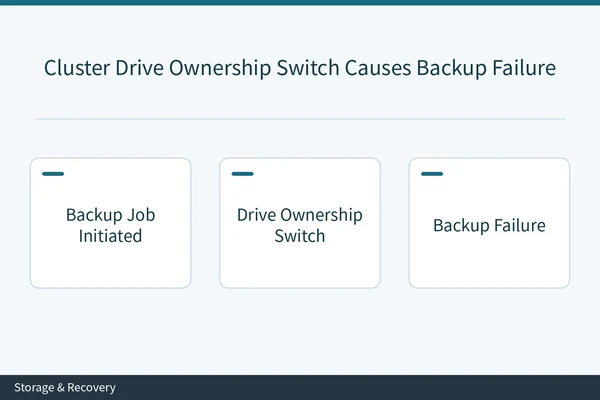
A system state backup will fail if the cluster drive, which was selected as the target for the backup, changes ownership to another node in the cluster after the backup job has already started. In a Windows Server Failover Cluster, resources like cluster disks can be moved between nodes for load balancing or maintenance. If the backup process has initiated writing to a specific cluster drive, but that drive's ownership is transferred to a different node before the backup completes, the original node loses access to the target location. Consequently, the backup job cannot write the final data, resulting in a failure.
Resolving the Issue by Pointing to Local Drives
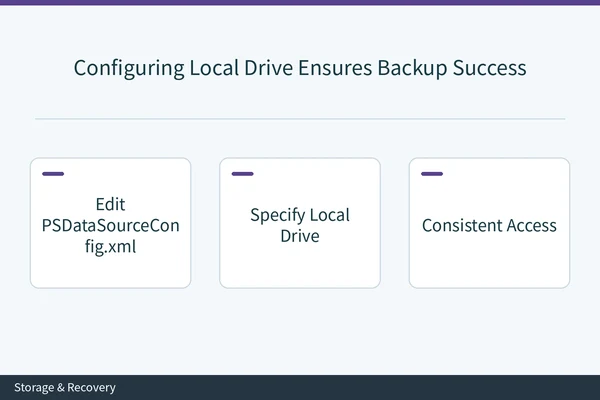
To prevent this failure, you should configure the backup to use a local drive on the node where the backup is running, rather than a shared cluster drive. This is achieved by modifying the PSDataSourceConfig.xml file located in C:\Program Files\Microsoft Data Protection Manager\MABS\Datasources on the protected server. Open this file and change the value to specify a local drive letter that remains accessible to the current node regardless of cluster ownership changes. After saving the file, run a consistency check on the protection group to ensure the configuration is applied correctly. This ensures that the backup target remains available throughout the duration of the job.
Understanding Backup Workflows and Storage Requirements
It is important to distinguish between system state backups and Bare Metal Recovery (BMR) backups. System state backups first create a folder named WindowsImageBackup in the root of the chosen drive, which is then transferred to the backup server. This folder is not cleaned up after the backup, reserving space for the next job. In contrast, BMR backups save directly to a shared folder on the backup server computer, bypassing the local drive selection logic. BMR requires a dedicated replica volume with at least 15 GB of space, defaulting to 30 GB, which is managed differently than system state backups. Understanding these workflows helps in selecting the appropriate protection strategy for clustered servers.
Frequently Asked Questions
Why does my system state backup fail in a cluster?
The backup fails because the cluster drive selected for storage changes ownership to another node during the job, making the target inaccessible to the initiating server.
How can I fix the backup target configuration?
You must edit the PSDataSourceConfig.xml file to explicitly specify a local drive letter that stays with the current node, rather than relying on the automatic selection of a cluster drive.
What is the difference between system state and BMR backup targets?
System state backups write to a local drive first before transferring to the server, whereas BMR backups save directly to a shared folder on the backup server, avoiding local drive ownership issues.