
Stabilizing a failing hard drive with slow reads and I/O errors
Published 2026-08-30 | JiWang Data Recovery Technical Team
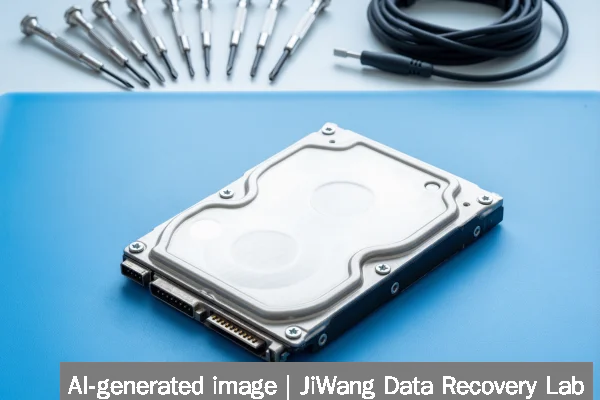
Immediate risk: A hard drive exhibiting slow reads and repeated I/O errors is likely experiencing physical degradation or firmware instability. Continued use may cause irreversible damage, including head crashes, platter damage, or complete controller failure. Stop all write operations immediately—do not run CHKDSK, format, initialize, or rebuild RAID arrays. Unmount the drive if mounted; do not power-cycle repeatedly. The safest next step is to connect the drive to a stable, low-stress diagnostic environment (e.g., a Linux live system with read-only mount) and perform a single-pass, sector-by-sector image copy to healthy storage using ddrescue or equivalent read-only imaging tools. Never attempt recovery on the original drive.
Symptoms and Risk
Slow read speeds combined with recurring I/O errors—reported via system logs (dmesg, Windows Event Viewer), SMART attributes (e.g., Reallocated_Sector_Ct, Current_Pending_Sector, UDMA_CRC_Error_Count), or application-level timeouts—are strong indicators of underlying hardware compromise. These symptoms often precede total failure. Risk escalates rapidly: each failed read attempt may stress degraded components further, increasing the chance of head stiction, servo misalignment, or firmware hang. For surveillance drives like the Toshiba S300 AI series—designed for continuous 24/7 operation—these symptoms suggest wear beyond intended duty cycles or thermal stress. In NAS environments using Sandisk NAS 600 or NAS 800 SSDs, similar behavior may point to NAND wear leveling exhaustion or PCIe link instability—not mechanical failure, but still requiring immediate read-only handling.
Known Facts
Hard drives with confirmed I/O errors and performance decay follow predictable physical patterns. SMART data is advisory, not definitive: a drive can report “OK” while failing at the sector level. Mechanical drives cannot recover from reallocated sectors or pending sectors without risking further damage. Solid-state devices—including SATA/NVMe SSDs used in NAS systems—do not suffer head crashes but may enter read-only mode or freeze due to controller firmware faults or bad NAND blocks. RAID arrays do not protect against controller-level corruption or simultaneous drive degradation. Backblaze and QNAP QuTS MEGA documentation confirm that snapshots and cross-cluster mirroring assume healthy underlying storage; they cannot restore data from a physically failing drive. No software tool can repair worn magnetic surfaces or degraded flash cells.
Possible Causes
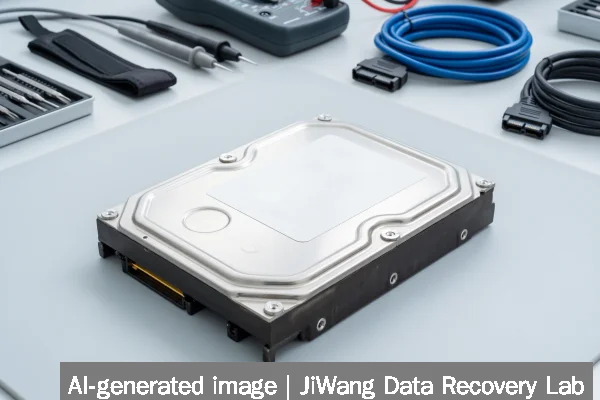
Causes fall into three categories: mechanical, electronic, and firmware-related. Mechanical causes include bearing wear, actuator arm misalignment, or contamination inside the sealed enclosure—common in older 3.5" HDDs. Electronic failures involve PCB component degradation (e.g., voltage regulator drift), especially after power surges or thermal cycling. Firmware corruption—often triggered by interrupted updates or sudden power loss—can lock the drive in a non-responsive state or cause erratic seek behavior. For SSDs like the Sandisk NAS 600 or NAS 800, possible causes include exhausted P/E cycles, failed DRAM cache (in DRAM-equipped models), or PCIe negotiation failures. In surveillance-grade drives such as the Toshiba S300 AI, sustained high-write workloads may accelerate wear in specific zones, leading to localized latency spikes and CRC errors.
Safe Checks
Perform only read-only diagnostics. First, verify connection integrity: use known-good cables and ports; avoid USB hubs or adapters that introduce protocol translation layers. On Linux, use smartctl -a /dev/sdX to inspect SMART values—focus on Reallocated_Sector_Ct, Seek_Error_Rate, and Raw_Read_Error_Rate. Do not interpret vendor-specific thresholds as absolute; instead compare trends over time if historical data exists. Use hdparm -I /dev/sdX to confirm drive identity and capabilities. For SSDs, check NAND_Program_Fail_Cnt and Media_Wearout_Indicator where supported. Run ddrescue -n -d /dev/sdX /path/to/image.img /path/to/logfile.log to begin imaging without retries—this avoids stressing unstable sectors. Monitor drive temperature with smartctl -A; sustained >55°C indicates cooling issues that worsen degradation.
Actions to Avoid
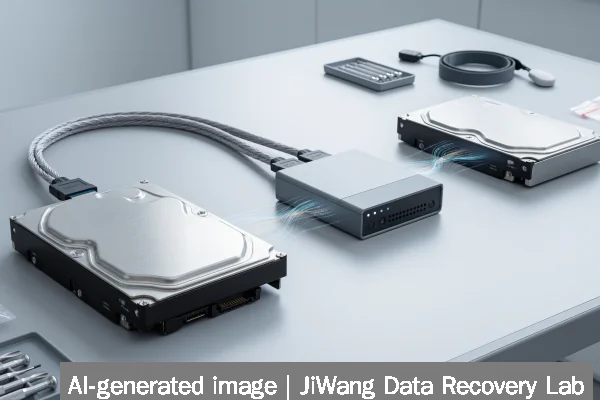
Avoid any action that writes to the drive or forces hardware-level intervention. Never run CHKDSK /f, fsck -y, or disk repair utilities—they modify filesystem metadata and may overwrite recoverable data. Do not initialize, format, or repartition—even “quick” formats write new structures. Avoid repeated power cycling: turning the drive on/off multiple times increases thermal stress and may worsen head stiction. Do not open the drive enclosure: dust ingress permanently destroys platters. Do not short pins, tap the drive, or freeze it—these are uncontrolled physical interventions with no technical basis. In RAID or NAS contexts, do not force rebuild, replace, or reassign drives without first imaging each member. For NVMe or PCIe 5.0 SSDs like the Sandisk NAS 800, avoid vendor firmware update tools unless the drive is fully functional and the update is explicitly recommended for your exact model and revision.
Diagnostic Limits
Software-based diagnostics cannot determine the exact physical location or nature of media defects. SMART attributes provide statistical summaries—not real-time sensor readings—and vary significantly between manufacturers. Tools like badblocks or CrystalDiskInfo may misreport SSD health because NAND wear is managed internally by the controller. In virtualized or database environments, I/O errors may originate upstream—from hypervisor storage stacks, iSCSI target misconfiguration, or journaling inconsistencies—not the physical drive itself. Surveillance systems using Toshiba S300 AI drives may log errors related to video stream buffering rather than raw media failure. Similarly, QNAP QuTS MEGA’s snapshot layer assumes block-level integrity; it cannot detect or compensate for silent corruption introduced by failing hardware. Physical diagnosis—requiring cleanroom disassembly, PCB replacement, or ROM chip reading—is necessary when firmware corruption or head assembly failure is suspected.
Frequently Asked Questions
Can I fix slow reads and I/O errors using built-in OS tools?
No. Built-in tools like CHKDSK, Disk Utility First Aid, or fsck assume logical filesystem corruption—not physical media failure. Running them on a mechanically degrading drive risks accelerating damage and overwriting recoverable data. They also cannot address firmware hangs, bad sectors, or NAND wear. Their use contradicts data preservation best practices.
Is imaging still possible if the drive disconnects during copying?
Yes—if the disconnection is brief and the imaging tool supports resume (e.g., ddrescue). Use the log file to restart from the last known good position. Avoid tools that lack retry logic or logging. Frequent disconnections may indicate USB bridge failure or severe controller instability; in those cases, direct SATA connection or professional interface assistance may be required before imaging succeeds.
Does enabling TRIM or garbage collection help a failing SSD?
No. TRIM and garbage collection are background maintenance operations that require write capability and stable firmware. A failing SSD showing I/O errors is typically already in a degraded or locked state—TRIM commands will fail or be ignored. Enabling them offers no benefit and may increase controller workload unnecessarily.
What if the drive isn’t detected at all in BIOS or OS?
Non-detection suggests deeper failure: PCB damage, severed internal connections, or complete firmware corruption. This falls outside safe software diagnostics. Do not attempt jumper resets or “re-seating” unless trained—incorrect handling may erase critical controller firmware. Physical evaluation in a controlled lab environment is the only appropriate next step.
Can cloud backup services like Backblaze restore data from a failing local drive?
No. Cloud backups reflect the state of files at the time of last successful sync. If the drive failed before the most recent backup, or if backup agents skipped corrupted files silently, data gaps will exist. Backblaze and similar services do not recover data from physically damaged sources—they preserve what was successfully uploaded earlier.