
When to Use Remote data recovery vs Physical Inspection for Hard Drives
Published 2026-08-31 | JiWang Data Recovery Technical Team
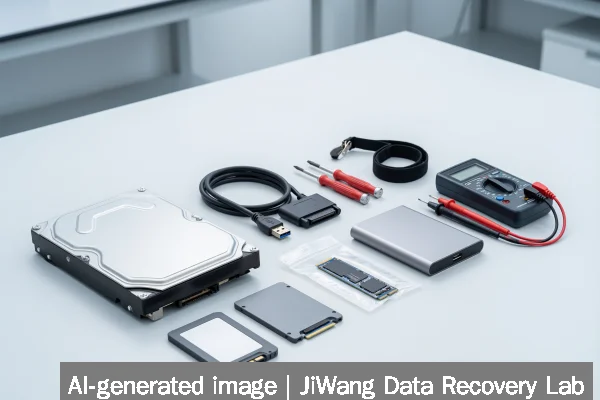
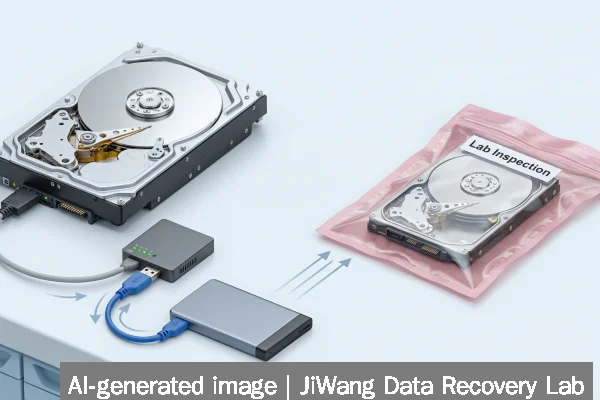
Remote data recovery is appropriate only when the storage device powers on, is recognized by the host system, and shows no signs of mechanical failure, firmware corruption, or physical damage. If the drive clicks, spins down unexpectedly, fails to appear in BIOS/UEFI, emits burning smells, or becomes excessively hot, stop all power cycles immediately. Do not run CHKDSK, format, initialize, or attempt RAID rebuilds. The safest next step is to disconnect the device, preserve it in a static-free environment, and consult a qualified lab for physical evaluation—especially for SSDs, NVMe drives, NAS arrays, servers, or any media exhibiting inconsistent behavior across multiple systems.
Symptoms and Risk
Symptoms determine risk level and guide triage. A drive that mounts and allows file browsing—even with slow access or occasional read errors—may be suitable for remote analysis. In contrast, symptoms like repeated disconnection, “drive not found” in Device Manager, absence from BIOS/UEFI, or audible grinding/clicking indicate hardware-level failure. For SSDs and NVMe devices, risk escalates with sudden capacity loss, write-protection triggers without user action, or SMART attributes showing critical wear (e.g., Media Wearout Indicator ≤10%). RAID arrays add complexity: if one or more member drives report “offline” status in the controller interface—or if the array degrades without clear cause—remote tools cannot reliably reconstruct parity or metadata. Physical inspection becomes necessary before any logical recovery attempt.
Known Facts
Remote recovery operates exclusively at the logical layer: file system structures, partition tables, and metadata. It assumes stable hardware communication. Verified facts include:
- SSDs and NVMe drives use wear leveling, TRIM, and internal garbage collection—processes invisible to host OS and incompatible with traditional disk imaging tools.
- NAS devices using ZFS, Btrfs, or Ceph-based systems (e.g., QNAP QuTS MEGA) store checksums and copy-on-write metadata across multiple disks; corruption in one component may invalidate remote reconstruction.
- Toshiba S300 AI Surveillance drives and Sandisk NAS 600/800 SSDs are engineered for continuous write workloads but lack user-serviceable firmware interfaces—firmware-related failures require vendor-specific diagnostic hardware.
- Backblaze-integrated Jamf deployments rely on cloud-synced backup states; local disk failure does not affect cloud-stored versions, but recovery of un-synced changes requires direct media access.
Possible Causes
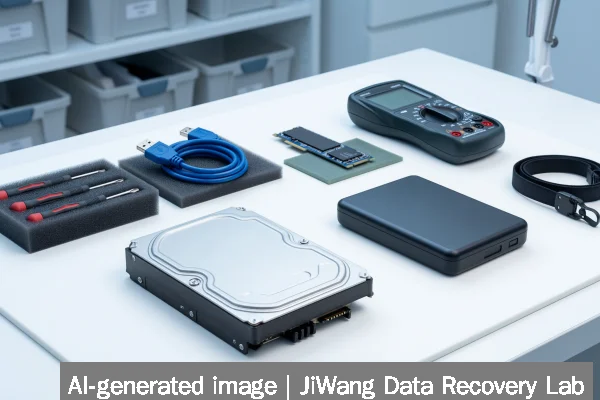
Different failure modes explain why some cases respond to remote methods while others do not. Logical corruption—such as accidental deletion, corrupted MFT (NTFS), or journal errors (ext4)—often permits remote repair. Firmware bugs in SATA SSDs may cause intermittent enumeration but remain addressable via manufacturer utilities—if the drive responds to basic ATA commands. However, possible causes requiring physical diagnosis include:
- Head stack misalignment or stuck actuator arms in HDDs, producing clicking or zero-seek behavior.
- Failed NAND controller chips or damaged PCB components in SSDs, preventing enumeration entirely.
- Corrupted RAID configuration metadata stored on controller cache or onboard flash—not recoverable without reading raw sector patterns.
- Physical damage to NVMe PCIe lanes, thermal throttling circuits, or voltage regulators, especially after power surges or overheating events.
These causes are not detectable through software alone and cannot be resolved remotely.
Safe Checks
Before assuming remote recovery is viable, perform these safe, non-invasive checks:
- Verify the device appears in BIOS/UEFI or UEFI Setup—not just in OS Device Manager.
- Test on a second known-good system using the same interface (e.g., USB 3.2 Gen 2, SATA III, or PCIe 5.0 slot).
- Use
smartctl -a /dev/sdX(Linux) or CrystalDiskInfo (Windows) to review SMART attributes—focus on Reallocated_Sector_Ct, Current_Pending_Sector, and UDMA_CRC_Error_Count for HDDs; Media_Wearout_Indicator and Available_Reserve_Space for SSDs. - Check system logs (
dmesgor Event Viewer) for I/O timeout messages, “reset failed”, or “device not ready” entries. - For NAS units, confirm whether the issue affects the entire array or only one volume—and whether snapshots (e.g., QNAP Snapshots Plus) remain accessible via web UI.
All checks must avoid writing to the device. Never mount with write permissions, run filesystem checkers, or initiate TRIM manually.
Actions to Avoid
Certain actions permanently reduce recovery probability and must be avoided regardless of device type:
- Do not run CHKDSK / fsck with repair flags: These tools rewrite filesystem metadata and may overwrite recoverable directory entries.
- Do not initialize, format, or repartition: This erases partition tables and boot sectors needed for structural analysis.
- Do not power-cycle repeatedly: Each cycle risks further head crash (HDD) or NAND cell degradation (SSD).
- Do not open sealed drives: Dust contamination inside HDDs or SSDs causes irreversible platter or die damage.
- Do not attempt RAID rebuild without full disk images: Rebuilding writes parity data and overwrites original sectors—only safe after bit-for-bit cloning.
For Sandisk Pokémon Edition USB-C drives or Toshiba S300 AI units, avoid third-party firmware updaters—these may brick the device if interrupted or mismatched.
Diagnostic Limits
Remote diagnostics cannot assess physical integrity. Tools like ddrescue, photorec, or commercial forensic suites assume functional I/O paths. They fail silently when:
- The drive’s USB bridge chip (common in portable SSDs) enters a locked state due to firmware fault.
- HDD servo tracks are damaged, causing seek errors that prevent consistent LBA mapping.
- NVMe drives report “Namespace Not Ready” or “Controller Fatal Status” in PCIe config space—indicating hardware-level controller failure.
- RAID controllers (e.g., LSI MegaRAID) store configuration in volatile cache or hidden sectors inaccessible without controller-specific firmware access.
Gartner-recognized enterprise platforms (Everpure, NetApp, Dell Technologies) often implement proprietary encryption or metadata obfuscation—requiring vendor-authorized diagnostics not available remotely.
Frequently Asked Questions
Can I recover data from a Sandisk NAS 800 NVMe SSD remotely?
Only if the drive enumerates fully in the host system, reports stable SMART values, and allows sequential reads without timeouts. PCIe 5.0 NVMe SSDs like the NAS 800 use complex controller firmware; unrecognized devices or those reporting “PCIe Link Down” require physical diagnostics—including possible PCB replacement or NAND chip-off extraction.
My QNAP NAS shows “Degraded RAID” but all drives appear healthy—can this be fixed remotely?
No. “Degraded RAID” indicates metadata inconsistency or silent corruption not visible in individual drive health. QNAP QuTS MEGA 2.0 relies on Ceph-based distributed metadata; remote tools cannot safely reconcile cross-cluster mirroring state or snapshot lineage without accessing raw device sectors and controller logs.
Does Backblaze + Jamf integration eliminate the need for physical recovery?
No. Backblaze stores only what has been successfully uploaded. Unsynced files, local caches, or application databases not included in Jamf-configured backup policies remain dependent on the original hardware. Physical failure of the Mac’s internal SSD still requires direct media access for local recovery.
Is a clicking sound always fatal for an HDD?
A consistent, rhythmic click (“click of death”) almost always indicates mechanical failure—typically head actuator or preamp issues. Intermittent clicking may stem from power delivery faults or firmware hang, but either case requires controlled lab environment evaluation before further use.
Can firmware updates fix a non-recognized Toshiba S300 AI drive?
Only if the drive responds to basic ATA/SATA commands and the update utility completes without error. Drives that fail to enumerate at all—showing no response in BIOS or lsblk—cannot accept firmware updates and need physical diagnosis for PCB, ROM, or NAND controller faults.