
DVR or NVR Says Not Found USB Disk: Safe Checks Before You Format
Published 2026-10-04 | JiWang Data Recovery Technical Team
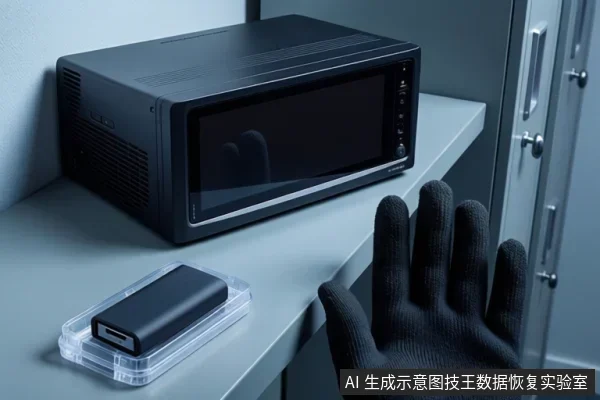
If your DVR or NVR says 'Not found USB disk' and the recordings matter, do not format or initialize the disk. First test whether the same USB storage is detected on a computer with another port, cable, and power source; that result separates a host, interface, or power problem from a file-system or drive failure.
Safe first checks that avoid data loss
The message from a DVR or NVR is a detection result, not a diagnosis. It tells you the host cannot use the disk at this moment. It does not tell you whether the disk is empty, logically damaged, or physically failing. Before any repair step, record what you observe so you do not make a destructive choice based on a guess. Write down the exact message, whether the drive light comes on or stays dark, and whether a computer lists the drive at all. Then change one variable at a time: first the USB port on the DVR or NVR, then the cable, then the computer. If the disk is a desktop-style model with an external power adapter, confirm that the adapter is connected directly to a working wall outlet before treating the result as a disk fault. If the DVR or NVR or computer never lists the drive, keep the goal at detection and power checks, not file-system repair. If a computer detects the drive but cannot read its volume, the next step is file-system assessment, not repeated power cycling. This order matters because a port or power failure can look like a dead disk, while a file-system error can look like a missing disk. For a portable drive that draws power from the USB port, connect it directly to the DVR, NVR, or computer instead of through an unpowered hub during the first checks. A powered hub can change what you see, so if the disk appears only through a powered hub or only through one particular host, treat that as evidence about the power or interface path rather than as proof that the recordings are intact. If the disk still is not listed after one port change, one cable change, and one computer check, stop changing variables randomly. The next useful step is to read the error state on the computer, because repeated attempts without a new observation only increase the chance of confusing a power problem with a failing drive. If the disk is listed by the computer but the volume cannot be opened, do not return to port and cable testing as if nothing was learned; that result moves the question to the file system. If the disk is listed and the volume opens normally on the computer, compare that result with the DVR or NVR result: the disk itself may be readable, while the DVR or NVR port or power output remains the variable to check. In that case, copy the files you need before putting the disk back into the recorder. If the disk is not listed anywhere and it has an external power adapter, verify the adapter connection and outlet one more time only if you have not already done so; after that, stop treating power cycling as a diagnosis. These boundaries keep the first checks useful: detection and power are tested first, file-system questions come after the drive appears, and recovery decisions come after the data risk is clear. Apply them in that order. A disk that never appears on any host stays in the detection layer, where the useful work is confirming power, cable, port, and enclosure behavior. A disk that appears but cannot be opened has already moved past that layer, and more port or cable swapping will not answer the file-system question. If the two hosts disagree, meaning the recorder sees the disk but the computer does not, or the reverse, the disagreement is itself the finding: it points at the host-specific part of the path rather than at the recordings. If the disk appears and then disappears, do not treat the first appearance as proof that the problem is solved, because an intermittent result is evidence about the connection and should be written down rather than forced into a stable result by repeated attempts. Keep the disk in one configuration long enough to record what happens, since a light that never comes on, a light that stays on, and a light that blinks describe three different situations. Only after the detection question has a clear answer does the file-system question become worth asking, and only after that answer is clear does a format, initialize, or reuse decision become reasonable, and then only for a disk whose recordings you have already decided you can lose.
- Keep the disk connected long enough to note whether its light comes on, stays on, blinks, or remains dark.
- Try a different USB port on the DVR or NVR if one is available. One controlled port change is enough to gather information.
- Try another USB cable.
- If possible, connect the disk to a computer. Use a different computer if the first one does not detect it.
- For desktop-style external drives, confirm the power adapter is connected and try another outlet. If a surge protector or power strip is used, plug the adapter directly into a wall outlet. If a USB adapter is used, try without it or use a different adapter.
These checks follow Seagate's USB External Troubleshooter, which starts by separating connection and power problems from drive or file-system problems. The goal is to learn where the failure travels with the disk.
Interface or power branch: the disk is not seen by the DVR or computer
If the DVR or NVR still reports 'Not found USB disk' and a computer also does not list the drive, stay in the detection layer. Do not assume the file system is the cause. The disk has not yet presented a readable volume to the operating system.
On Windows, open Device Manager. Look for entries called unknown device, other device, or mass storage device with a yellow exclamation mark. Expand Universal Serial Bus controllers and open the device properties. Check Device Status for an error code.
- Code 10 after another cable and computer: the drive has probably failed. If data is needed, consider data recovery.
- Code 28, and possibly Code 43: close the error window, uninstall the device, shut down, disconnect the drive, reboot with the drive disconnected, then plug it into a different port. Check whether the same code returns.
On macOS, check Disk Utility if the drive is not on the desktop or in Finder. If it is not in System Information or System Profiler and not in Disk Utility, try another Mac. If another Mac also cannot see it, the evidence points away from the DVR or NVR and toward the drive, cable, enclosure, or power path.
For desktop drives, a dark light can indicate the power adapter is not connected to power. Try a different outlet. This is still a power check, not proof of file-system damage.
Logical or file-system branch: the disk appears but cannot be used
A different result appears when the computer detects the USB disk at the hardware level but cannot read its file system. On Windows Disk Management, the disk may appear with RAW or Unallocated. On macOS, Disk Utility may show the device but the volume may not mount.
These signs point to a formatting or file-system problem rather than a completely undetected drive. The disk is answering, but the structure that describes files and folders is not being read correctly.
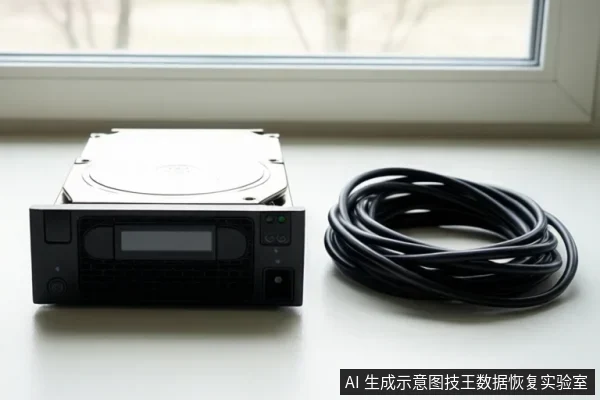
- If the volume still cannot be opened after the disk is listed, move to file-system assessment instead of repeating port and cable checks.
- If Disk Management shows RAW or Unallocated and you have already tried a different port, cable, and computer but you need the data, consider data recovery.
- On macOS, if Disk Utility cannot mount the drive, that indicates some level of file-system corruption. It does not by itself prove the platters or flash are damaged.
If the DVR or NVR asks to format the disk to use it, remember that formatting erases all data. That prompt is a formatting action, not a read-only diagnosis. For a related read-only assessment, see NVR Format Prompt: Why It Appears and How to Safely Assess Recovery.
Media or hardware branch: when the disk is probably failed
The strongest sign of drive failure is a disk that remains invisible at the operating-system level after basic external checks. The problem follows the disk to more than one host or remains tied to the device itself.
- Windows: no entry in Device Manager, or a Code 10 that persists after another cable and computer.
- macOS: not in System Information or System Profiler and not in Disk Utility, including on a second Mac.
- Power: a desktop drive with no light even after the adapter is connected directly to a working wall outlet and the outlet is changed.
- Stability: repeated disconnects, unrecognized states, or the same error code returning after the Code 28 or 43 reinstall procedure.
If data is needed, consider professional data recovery. Do not open the enclosure or drive, and do not attempt a rebuild. The fact that a drive is not detected does not prove every byte is gone, but continued power cycling or DIY writes can reduce recovery options.
If the data is not needed and you only want to reuse the disk, you can still choose to test or replace it. That is a different goal from recovering recordings. Be clear about which goal you have before you format or initialize.
Stop conditions
The following stop conditions apply across all branches. When one matches, stop and change goals from repair-in-place to protecting the data.
- Stop if the data is important: do not format, initialize, or write to the disk; formatting erases data.
- Stop repeated plug and unplug or power cycling if the drive is not detected or if Code 10 persists after another cable and computer.
- Stop DIY software steps if the drive is not detected in Device Manager or Disk Utility, or if it is detected only as RAW or Unallocated and the data is needed; use data recovery.
If none of these stop conditions applies and the disk is detected with a normal volume, back up the files you need first. Only then consider repair, reformatting, or returning the disk to the DVR or NVR.
Frequently Asked Questions
What does RAW or Unallocated mean when the disk shows up on a computer?
Use RAW or Unallocated as a file-system clue only when the same device-level listing is repeatable. If the disk is listed as RAW or Unallocated on one computer but not listed at all on another, the file-system finding is not confirmed; stay in the detection or power branch until the disk appears again. If the recordings are the only copy and the disk is visible only as RAW or Unallocated, stop before any initialize or format step, because making the volume usable is not the same as recovering the files; keep the disk in one stable configuration and arrange recovery from that state.
Does a second computer result always mean the disk is dead?
No, but compare the two hosts with the same power and cable setup first. If the recorder sees the disk while the second computer does not, the disagreement points to the recorder's port, cable, power output, or file-system handling rather than to the recordings themselves. A useful rule is to test the second computer before changing recorder settings; if that computer lists the disk with a normal volume, copy the needed files there first, then return to the recorder as a separate host problem.
What signs suggest the USB disk has probably failed rather than just not being recognized?
Distinguish a recorder-only failure from an operating-system failure. A DVR or NVR saying 'Not found USB disk' while any computer lists the disk is not enough to call the drive failed; that result points more to the recorder's handling of the disk. Failure is more likely when the disk stays invisible at the operating-system level on more than one host after the basic external checks, or when a desktop drive's light never comes on even with direct wall power. If any host lists the disk but no host can open the volume, stop treating it as a dead drive and keep it read-only for file-system recovery; do not open the enclosure or drive.