
SSD Service Area Damage Causes BSY State Recovery
Published 2026-11-25 | JiWang Data Recovery Technical Team
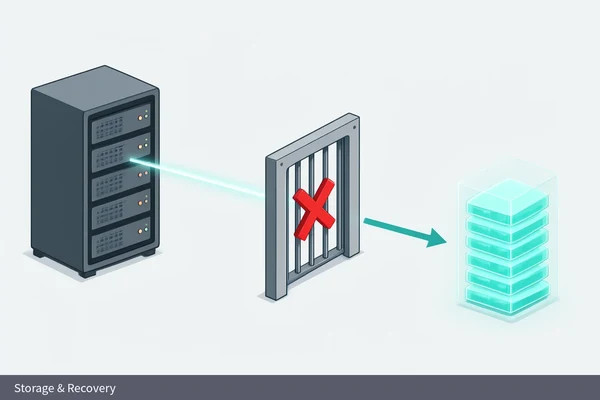
When an SSD suffers deep damage to its internal service area, it enters the Busy (BSY) state immediately after receiving any command. Although the drive may briefly appear in a Ready state upon power-up, any attempt to read the ID or sectors triggers the BSY flag, effectively locking the drive and preventing standard data access until firmware-level recovery is performed. This behavior is critical for engineers to recognize, as it signals that the drive's internal translator or service blocks are corrupted. The drive does not fail silently; it actively blocks access to protect its integrity, resulting in a state where standard diagnostic tools see the drive as busy but unresponsive to data requests.
Key Takeaway: Deep service area corruption forces the drive into a BSY state on any command, blocking standard reads. Recovery requires specialized hardware like PC-3000 to bypass standard protocols and repair the firmware directly.
Why Standard Tools Fail on Damaged Drives
Standard operating systems and generic diagnostic utilities rely on the drive responding with valid identification data (ID) and sector information. When the internal service area is damaged, the SSD controller cannot complete the handshake required to return a valid response. Instead of returning an error code that software can parse, the controller sets the BSY (Busy) bit in the ATA registers. This state persists as long as the controller is attempting to access the corrupted firmware structures. Consequently, tools like Windows Disk Management or basic Linux lsblk commands will hang, timeout, or report the drive as missing. The drive is not physically dead; it is logically locked by its own firmware protection mechanisms. To proceed, you must use hardware that can intercept and manipulate these low-level ATA commands, such as the PC-3000 Portable III/PRO, which can operate directly with the drive’s internal firmware to repair corruption in critical service blocks.
Manual LBA Extraction Workaround
Recovering data from a drive stuck in BSY state requires a specific workaround using specialized extraction software like Data Extractor (DE). The process involves bypassing the automatic ID read, which triggers the freeze, and manually forcing a sector read. Follow these steps:
- Create a New Task: In your extraction software, create a new task based on the specific drive port (e.g., Port 0).
- Disable Automatic ID Read: Remove all checkboxes, specifically ensuring 'Read Drive ID' is unchecked. This prevents the software from sending the command that triggers the BSY lock.
- Calculate Total LBAs: Determine the total Logical Block Addresses (LBAs) by multiplying the drive capacity in GB by 1024 (to MB), then by 1024 (to KB), and finally by 2 (since 1 LBA = 512 bytes). For a 256 GB drive, this equals 536,870,912 LBAs.
- Force Read LBA 0: Configure the task to read LBA 0 (Master Boot Record). When the drive freezes, immediately restart the drive while pressing CTRL+R to update the data in the LBA. This forces the drive to start reading data before it can fully reinitialize and lock up.
- Configure Error Handling: In the DE settings, remove 'Soft Reset' and 'Hard Reset' from error handling. Leave only 'Turn off/on drive’s power'. Set the readiness timeout to a minimum and keep the jump size equal to 1 LBA. This ensures the software cycles power every time the drive freezes, allowing it to grab the next sector before locking again.
This method allows you to copy the main partition metadata. Once the HFS+/APFS metadata is read, you can build a map of used sectors and force reading only those areas, significantly improving recovery success rates.
Hardware-Specific Recovery Requirements
Not all drives behave identically, and successful recovery depends heavily on the interface protocol and controller architecture. For example, Apple SSDs from 2013-2015 use the AHCI protocol over PCIe, which mimics older ATA commands. Later models (2016+) use NVMe, which requires a completely different handling approach. The following table summarizes the expected behavior based on drive condition:
| Drive Condition | Initial Power-On State | Response to First Command | Recovery Action |
|---|---|---|---|
| Healthy Drive | Ready (DRD/DSC) | Returns ID/Sectors | Standard file system recovery |
| Corrupted Service Area | Ready (briefly) | Freezes to BSY | Manual LBA extraction with power cycling |
| Firmware Translator Damage | No Detection | No Response | Firmware repair via specialized utility |
For drives with deep service area damage, you need a direct connection to a specialized platform like the PC-3000 Portable PRO. Standard USB-to-SATA adapters will not work because they cannot handle the low-level ATA register manipulation required to keep the drive in a readable state. Additionally, for physically damaged sectors, combining this software workaround with intelligent heating (80°C–140°C) of NAND chips can help reread damaged sectors by altering the electron retention properties temporarily. This combined approach—firmware repair, manual LBA extraction, and thermal assistance—offers the best chance for accessing data on unsupported or deeply corrupted drives.
Related Reading
- Seagate Data Recovery: Logical vs. Physical Failure and Service Options
- How Long Does SD Card Data Recovery Take? Logical vs. Physical Damage
- M339 Storage Device Unreadable: Immediate Steps and Recovery Options
Frequently Asked Questions
Why does my SSD go into BSY state after power-on?
The SSD enters the Busy (BSY) state because its internal firmware translator or service blocks are corrupted. When the controller receives any command, it attempts to access these damaged structures, fails to complete the operation, and sets the BSY flag to block further access. This is a protective mechanism to prevent further data loss or controller instability.
Can I recover data from a drive with corrupted service area?
Yes, data recovery is possible even with a corrupted service area, but it requires specialized hardware like the PC-3000. You must bypass standard identification commands and manually force sector reads using power-cycling tricks. This approach allows you to extract the main partition metadata and rebuild a map of used sectors for targeted recovery.
What is the difference between Ready and BSY states in SSDs?
The Ready state indicates the drive is powered on and waiting for commands, typically showing DRD (Data Ready) and DSC (Device Service Complete) flags. The BSY (Busy) state indicates the drive is actively processing a command or, in the case of damage, is locked and refusing to respond to new commands. A healthy drive transitions from BSY to Ready quickly, while a damaged drive may get stuck in BSY indefinitely after the first command.