
Purpose of Restore Files or Folders Wizard in Windows Backup
Published 2026-11-25 | JiWang Data Recovery Technical Team
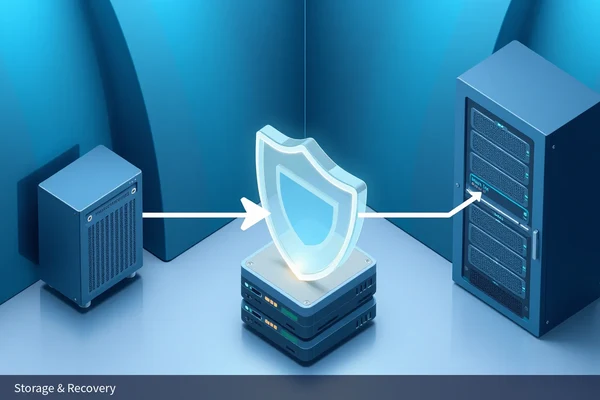
The Restore Files or Folders wizard is the primary recovery interface within Windows Small Business Server (SBS) 2011 Essentials. Its core purpose is to reverse data loss events by retrieving content from existing backups stored on external storage devices or network shares. When a hard disk malfunctions, files are accidentally erased, or data becomes inaccessible, this utility allows administrators to pull specific data back into the system. It is not a general-purpose file explorer but a targeted recovery tool designed to bridge the gap between a failed state and a previous known good state. The wizard operates exclusively on backup images created by the SBS Backup wizard, ensuring data integrity through consistent volume shadow copy snapshots.
Key Takeaway: The wizard is strictly tied to SBS 2011 Essentials backups. It cannot recover data from standard Windows 10/11 File History or third-party backup solutions without specific conversion or compatibility layers.
Supported Restoration Granularity
Engineers must understand the three distinct levels of recovery supported by this tool. The wizard provides flexibility based on the scope of the data loss:
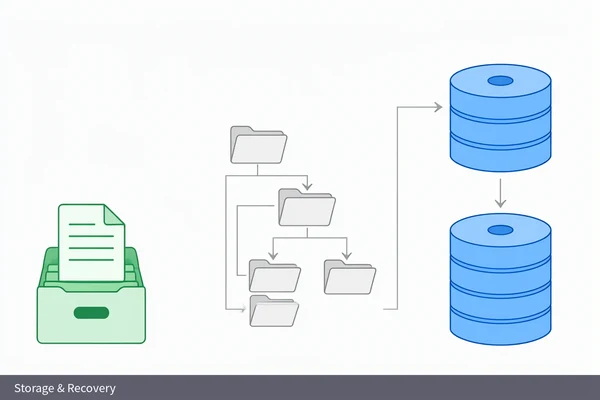
- Single File Restore: Recovers individual documents, images, or executables. This requires precise knowledge of the file path within the backup image.
- Multiple Folders: Restores entire directory structures, preserving relative paths and permissions. This is ideal for recovering a project folder or user data set.
- Entire Hard Drive: Performs a full disk image recovery. This is a last-resort operation that overwrites the target drive with the backup state, requiring a matching partition layout.
| Feature/Scope | Description | Limitation |
|---|---|---|
| Single File Restore | Recovers individual documents/images | Requires specific path knowledge |
| Multiple Folders | Restores directory structures | Preserves relative paths only |
| Entire Hard Drive | Full disk image recovery | Requires matching partition layout |
| SBS 2011 Only | Native to Small Business Server | Not available in standard Windows 10/11 Backup |
Choosing the wrong granularity can lead to unnecessary downtime. For example, using an entire hard drive restore to fix a missing document is inefficient and risky. Always select the smallest viable scope to minimize exposure to potential backup corruption.
Prerequisites for Successful Recovery
Before launching the wizard, several technical prerequisites must be met to ensure a successful operation. First, the backup destination (external USB drive or network share) must be physically connected and accessible. If the backup media is disconnected or has failed, the wizard will fail to enumerate available restore points.
Second, you must verify that the backup image is not corrupted. A damaged backup image will result in a failed restore or incomplete data retrieval. Use the SBS Backup wizard to verify the integrity of the backup before attempting recovery.
Third, ensure you have administrative privileges on the target server. The wizard requires elevated permissions to write data back to the system drive, especially when restoring system files or modifying partition tables during a full disk restore. Finally, confirm that the SBS Server Essentials Connector is installed on any client machines involved, as this ensures proper permission mapping during the restore process.
Common Restoration Failures and Fixes
A critical technical constraint exists when attempting to use the Restore Files or Folders wizard on newer operating systems. If you attempt to run this wizard on Windows 8.1, Windows Server 2012 R2, or later versions, it will likely fail to appear or function correctly. This is because the wizard is specific to the SBS 2011 architecture and is not natively included in standard Windows client or server installations.
To resolve this on Windows 8.1 or Server 2012 R2, you must install a specific Microsoft hotfix (KB article referencing the SBS 2011 compatibility issue). Additionally, the Windows Server Essentials Connector must be installed on the target machine. Without this connector and the hotfix, the system lacks the necessary COM components and registry keys to interface with the SBS backup service.
For engineers managing legacy SBS environments, this compatibility gap is a common pitfall. Always patch the target OS with the required hotfix before attempting any recovery operations. If the hotfix is unavailable, consider mounting the backup image as a virtual disk (VHD) and accessing the files directly, bypassing the wizard entirely.
Related Reading
- Fix Windows Server Backup Error 0x800423F4 VSS Failure
- Ensuring Backup Accessibility: Sharing the WindowsImageBackup Folder
- New Hard Drive Not Showing Up in Windows: Step-by-Step Troubleshooting Guide
Frequently Asked Questions
How do I restore a single file from a Windows SBS 2011 backup?
Launch the Restore Files or Folders wizard from the SBS Console. Select the specific backup date, then browse the directory structure to locate the target file. Right-click the file and select Restore. The wizard will place the file back in its original location, overwriting the current version if it exists. Ensure you have administrative rights to avoid permission errors during the write operation.
Why does the Restore Files or Folders wizard fail to appear in Windows 8.1 or Server 2012?
The wizard is native only to Windows Small Business Server 2011 Essentials. It is not included in standard Windows 8.1 or Server 2012 R2 installations. To use it, you must install a specific Microsoft hotfix and the Windows Server Essentials Connector. Without these components, the system lacks the necessary interfaces to communicate with the SBS backup service.
What are the prerequisites for using the Restore Files or Folders wizard?
You must have the backup destination (external drive or network share) physically connected and accessible. The backup image must be verified for integrity, and you must have administrative privileges on the target server. Additionally, ensure the SBS Server Essentials Connector is installed on any client machines involved in the recovery process to maintain proper permission mapping.