
When to Use Non-Zero File Size for SSD Metadata Recovery
Published 2026-11-28 | JiWang Data Recovery Technical Team
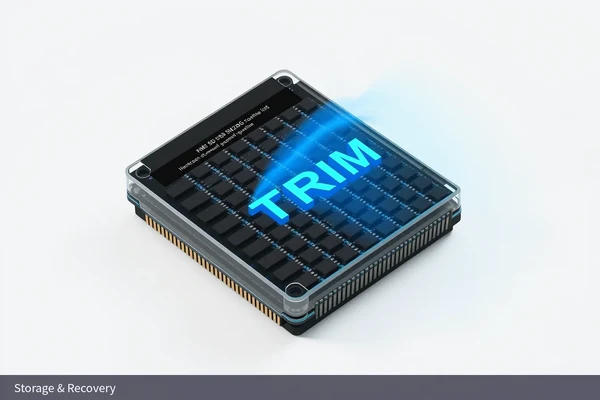
Select the 'With non-zero file size' option when recovering data from formatted SSDs (like Silicon Motion SM2320G) where the file system metadata exists but contains no valid file entries or headers. This option forces the recovery engine to ignore empty metadata structures and scan for actual data blocks, bypassing the corrupted or empty file allocation tables that standard logical recovery tools fail to parse after TRIM execution.
Key Takeaway: Do not use this option for drives with physical corruption or missing NAND chips; it requires a functional Flash Translation Layer (FTL) rebuild first. If the drive shows zero bytes in raw scans, the data may have been permanently erased by aggressive garbage collection, making this setting ineffective.
Understanding the SM2320G Controller's TRIM Behavior
Modern external SSDs, particularly those using the Silicon Motion SM2320G controller, operate fundamentally differently from traditional USB flash drives. These devices integrate a full SSD architecture, including a Flash Translation Layer (FTL), dynamic wear leveling, and TRIM support. When a user performs a quick format, the operating system issues a TRIM command, instructing the SSD to mark deleted blocks as candidates for erasure. Unlike mechanical drives or basic USB sticks, where deleted data often remains physically stored until overwritten, SSDs begin cleanup and data reallocation almost immediately. This aggressive garbage collection means that recovery success depends not only on the type of formatting but also on the state of the translation tables and the time elapsed since the formatting event. Understanding this behavior is critical before attempting any recovery operations.
Rebuilding the Translator: A Prerequisite Step
Before applying specific metadata selection options, you must ensure the drive's internal logic is accessible. Connect the formatted SSD to a specialized recovery tool, such as the PC-3000 Portable PRO, and verify that standard logical recovery tools fail to find files. The next critical step is to load the appropriate loader for the specific controller (e.g., SM2320G) and rebuild the translator. This process reconstructs the mapping between logical addresses and physical NAND blocks. Without a successfully rebuilt translator, the recovery software cannot interpret where data resides on the flash memory. Only after the utility confirms a successful translator rebuild should you proceed to create a disk with physical access enabled. This step provides direct access to all non-empty sectors on the drive, allowing the software to see raw data that standard file system scans miss.
Selecting Metadata Versions: The Non-Zero File Size Logic
Once physical access is established, create a virtual disk based on the physical-access drive, ensuring it includes translation data and all available metadata versions. At this stage, you will encounter the 'Selection Versions for Metadata' process. The choice between 'The most relevant version' and 'With non-zero file size' determines how the software interprets the file system structure. Use 'The most relevant version' if the drive was just formatted and you need the recent file structure. However, use the 'With non-zero file size' option when the drive contains deleted data where the file system metadata exists but contains no valid file entries or headers. This forces the engine to ignore empty metadata structures and scan for actual data blocks, bypassing the corrupted or empty file allocation tables that standard logical recovery tools fail to parse after TRIM execution.
| Scenario | Metadata State | Recommended Action |
|---|---|---|
| Standard Format + No TRIM | Metadata intact, files listed | Use 'The most relevant version' |
| Quick Format + TRIM Executed | Metadata exists, file entries empty/zero-size | Use 'With non-zero file size' |
| Physical Damage | FTL corrupted, no metadata | Rebuild translator; do not select metadata |
| Full Format | File system structure destroyed | Rebuild translator; check for data blocks |
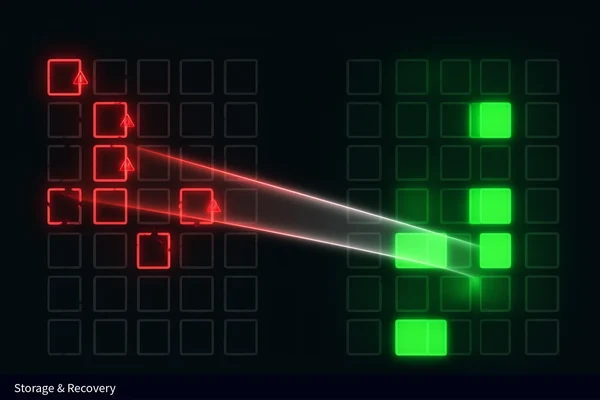
If files are marked with a red indicator after selection, it may be possible to manually select alternative versions for specific files. However, if sectors are filled with zeroes and contain no alternative versions, the data has likely been completely erased by garbage collection, making recovery impossible.
Related Reading
- Why Data Recovery Time Depends on Device Health, Not File Size
- Why Data Recovery Time Varies: Media Health vs. File Size
- Seagate 320GB Data Recovery: When to Use Software vs. When to Stop
Frequently Asked Questions
Why does raw recovery show no files after a quick format on an SSD?
Raw recovery shows no files because the SSD controller has executed the TRIM command, marking the data blocks as erased and making them unavailable for logical scanning. The file system metadata is updated to reflect the new, empty state, and the physical data is scheduled for garbage collection, leaving no valid file entries for standard tools to parse.
What is the difference between standard metadata selection and 'non-zero file size'?
Standard metadata selection ('The most relevant version') uses the current file system structure, which is empty after formatting. The 'non-zero file size' option ignores these empty entries and forces the recovery engine to scan for actual data blocks based on their physical presence, allowing access to files that exist in the NAND but are no longer listed in the file allocation table.
Can I recover data if the TRIM command has already run on my SSD?
Recovery is possible if the TRIM command has run but the garbage collection process has not yet physically erased the NAND cells. The key is to use the 'With non-zero file size' option after rebuilding the translator, which allows the software to bypass the empty metadata and locate the raw data blocks before they are overwritten or erased by the controller.